Accessing the Raspberry Pi from the PC
In order to access the Raspberry Pi the easiest method is ssh. On a
Linux Laptop everything is already installed for you and all you need is this command:
ssh -X yourUserName@yourRaspberryPi
- where -X is used for X11 forwarding (accesses the X server on the laptop to display windows created by the Raspberry Pi program
- yourRaspberryPi is either the Raspberry Pi's host name or its IP address
On
Windows this is a little more tricky. You will need
PuTTY, the ssh client in Windows and an X server like
Xming.
Xming should be running before you start and you will see this on the little icon on the task bar (the X icon)

Then start putty and enter your userUserName@yourRaspberryPi where
yourUserName is the user name on the Raspberry Pi and yourRaspberryPi is either the hostname of your RPi or its IP address (see below)
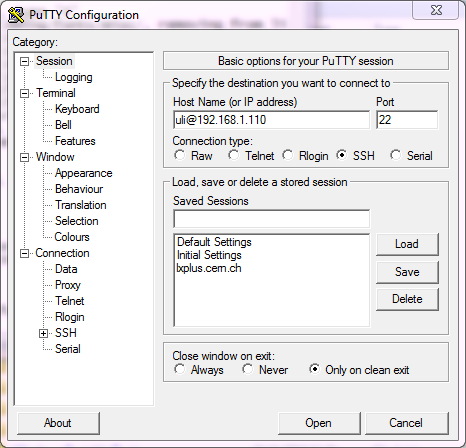
Then click on the + next to SSH and then on X11. This window will appear:
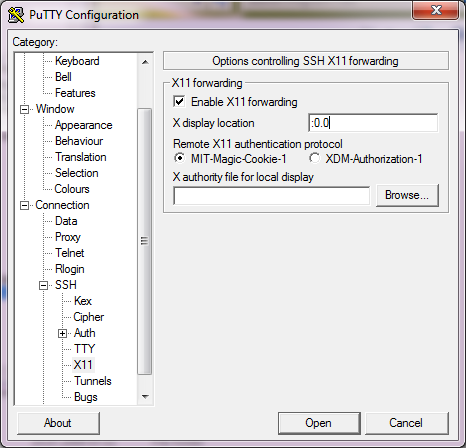
Check X11 forwarding and put ":0.0" into the X display location field. Then click on the
Session category to get back to the first window and click the
open button. Now you should get connected to the Raspberry Pi and you can start any program on the RPi and get the windows the RPI program creates on your Laptop screen. In the example below I started
idle, the IDE for Python.
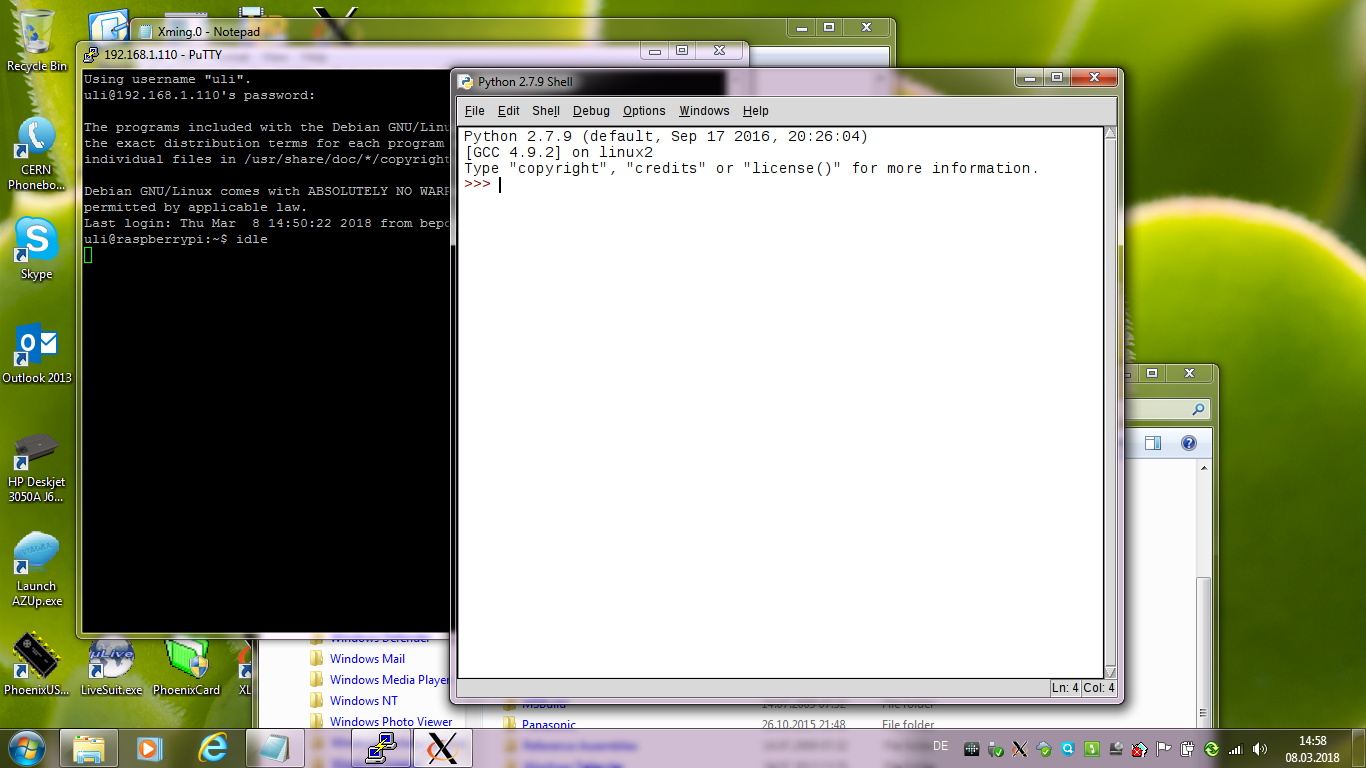
Now you can type in your Python commands or edit and run your Python program.
-- %USERSIG{UliRaich - 2018-03-08}%


 png