
Slide 1: Setting up an IoT
Session 3: MQTT and Cayenne
Uli Raich
Formally CERN, Geneva, Switzerland
Slide 2: The Network Layers
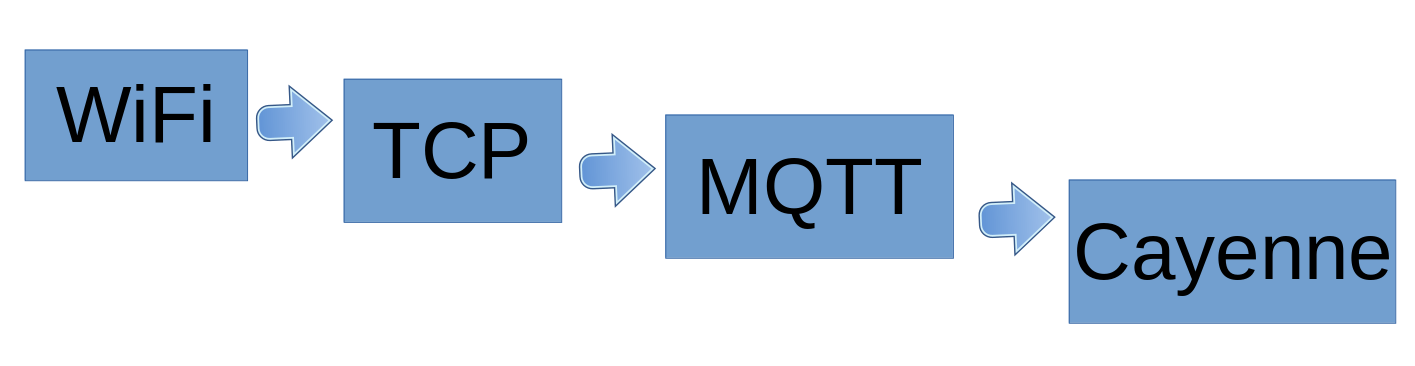
The WeMos D1 mini has a built-in WiFi interfaceIn order to communicate with other IoT nodes we must therefore connect to the WiFi network first
On top of WiFi we will run a TCP session
On top of TCP we will run the MQTT protocol
On top of MQTT we have dedicated topics and payloads imposed by Cayenne
Slide 3: Accessing the WiFi network
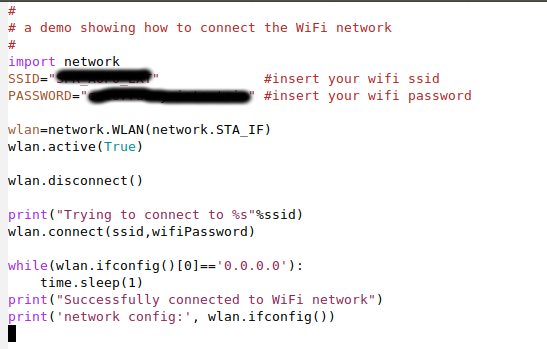
Slide 4: Accessing the WiFi network from Micropython

Slide 5: MQTT
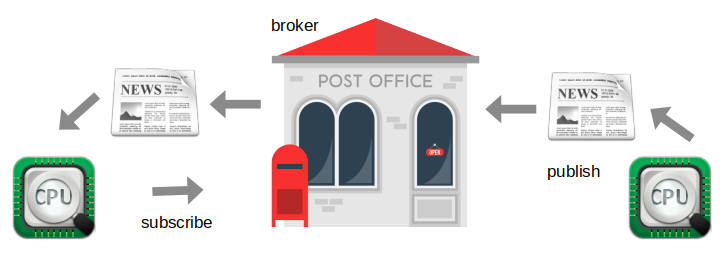
MQTT (Message Queuing Telemetry Transport: a publish-subscribe basedmessage protocol running of top of TCP.
A processor can subscribe to messages of a certain \x93topic\x94 and/or it can push its
results on a certain topic
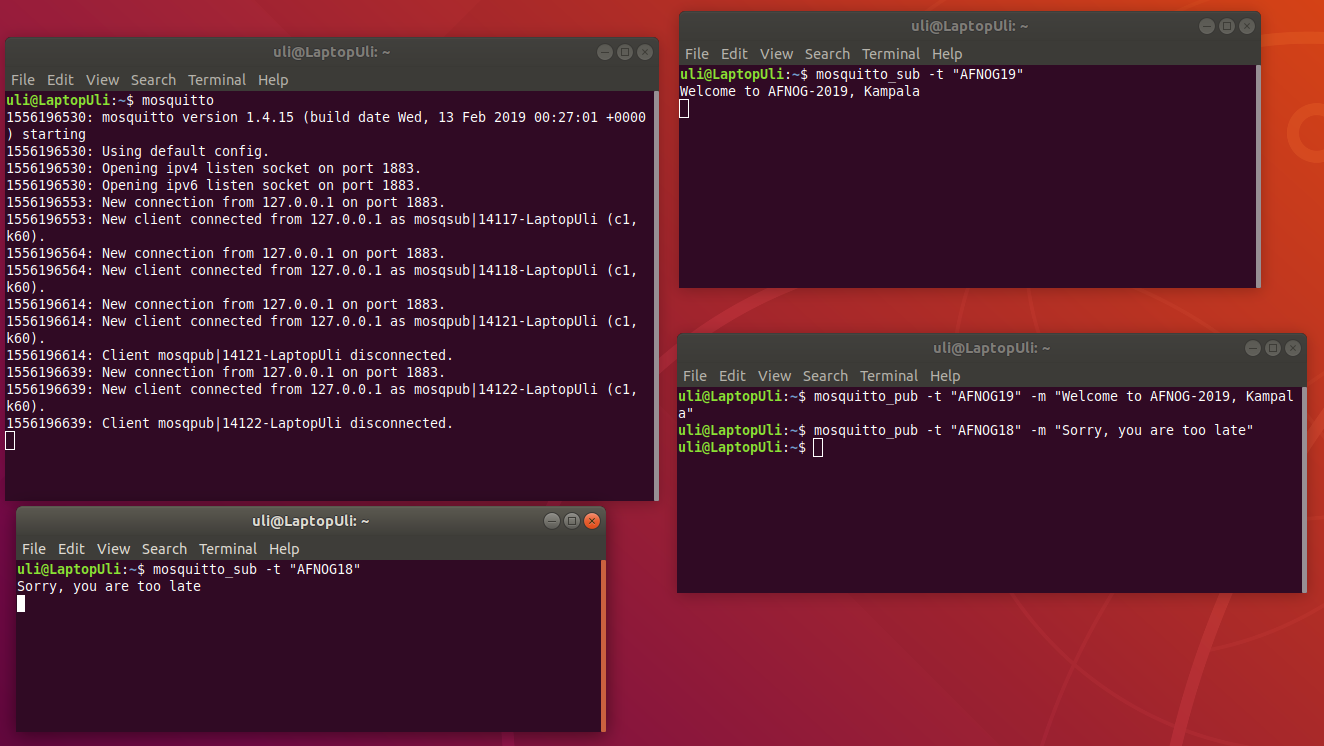
Slide 6: MQTT Demo
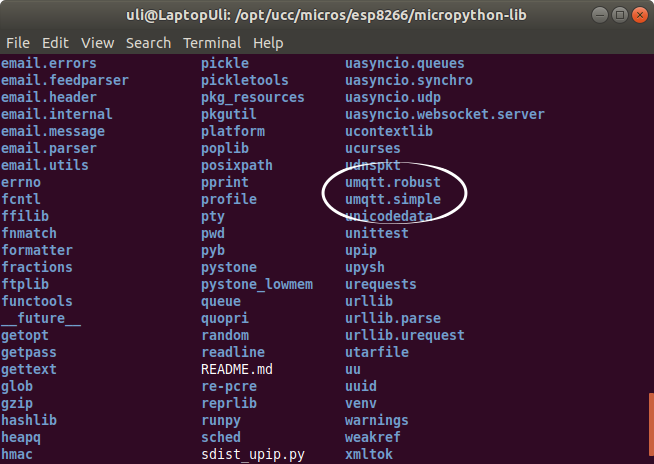
Slide 7: The Micropython library
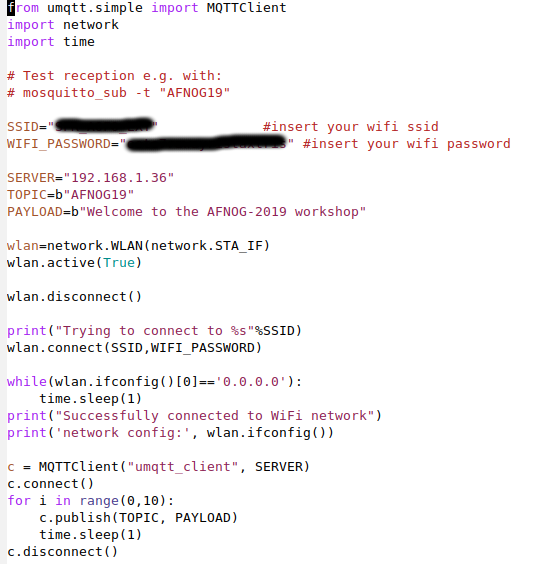
Slide 8: A MQTT example using umqtt.simple
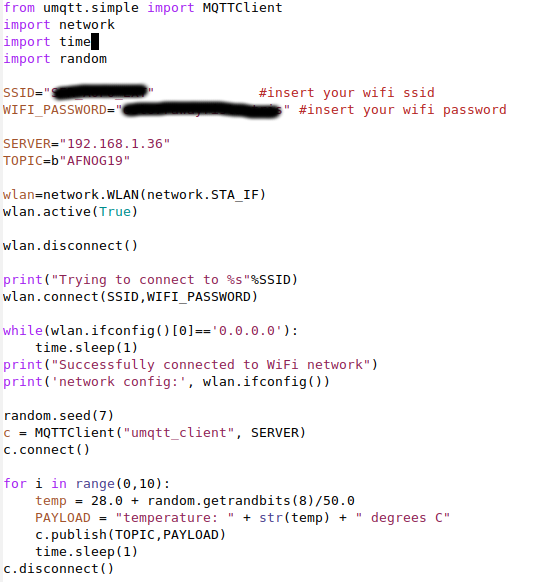
Slide 9: Sending dummy temperature data
Slide 10: Receiving commands
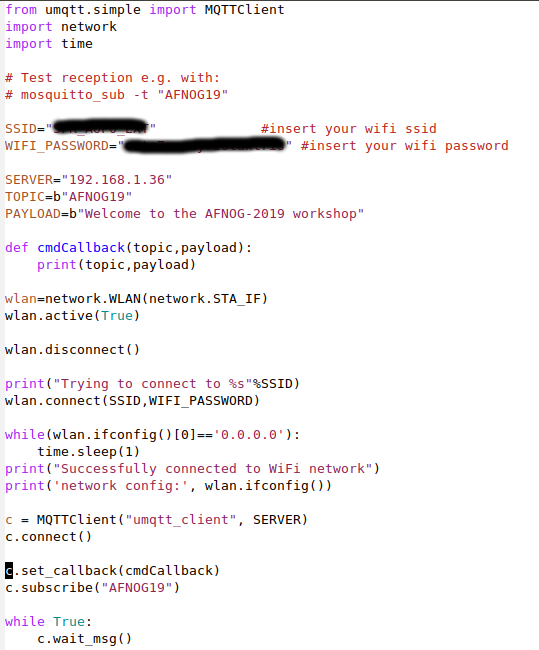
Receiving commands is a bit more tricky! We must:- Write a callback function and register it with the MQTT client
- This function takes 2 arguments:
- The topic
- The payload
- Subscribe to the topic
- Wait forever. The callback function will be executed when a message with the
topic we subscribed to, will arrive
Slide 11: Subscribe a callback
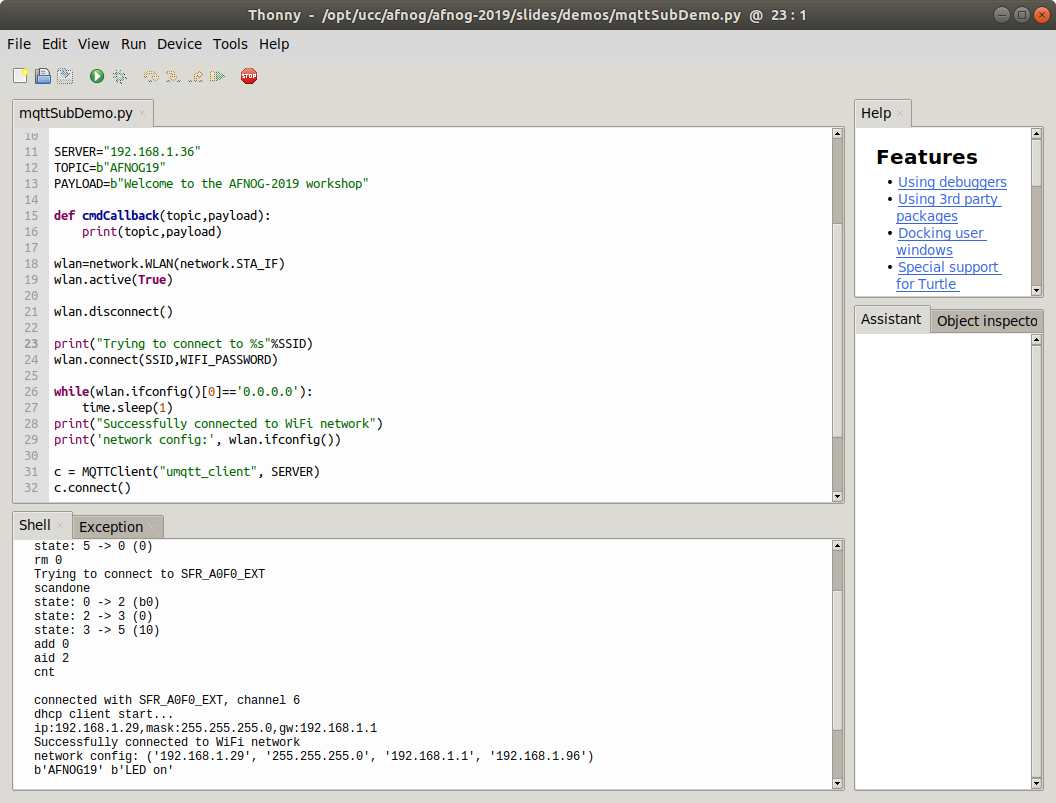
Slide 12: Callback result
Slide 13: Controlling a LED
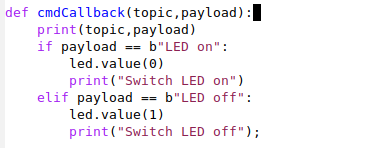
In order to control a LED through MQTT we now simply interpret the payload:- Message \x93LED on\x94
- Message \x93LED off\x94
Slide 14: Changed Callback
Slide 15: Missing functions in IoT
- MQTT broker should be globally reachable
- GUI to easily visualize sensor measurements
- GUI elements to easily control actuators
- GUI should be accessible through a WEB interface
- GUI should be accessible through smart phone app
Slide 16: Cayenne functionality
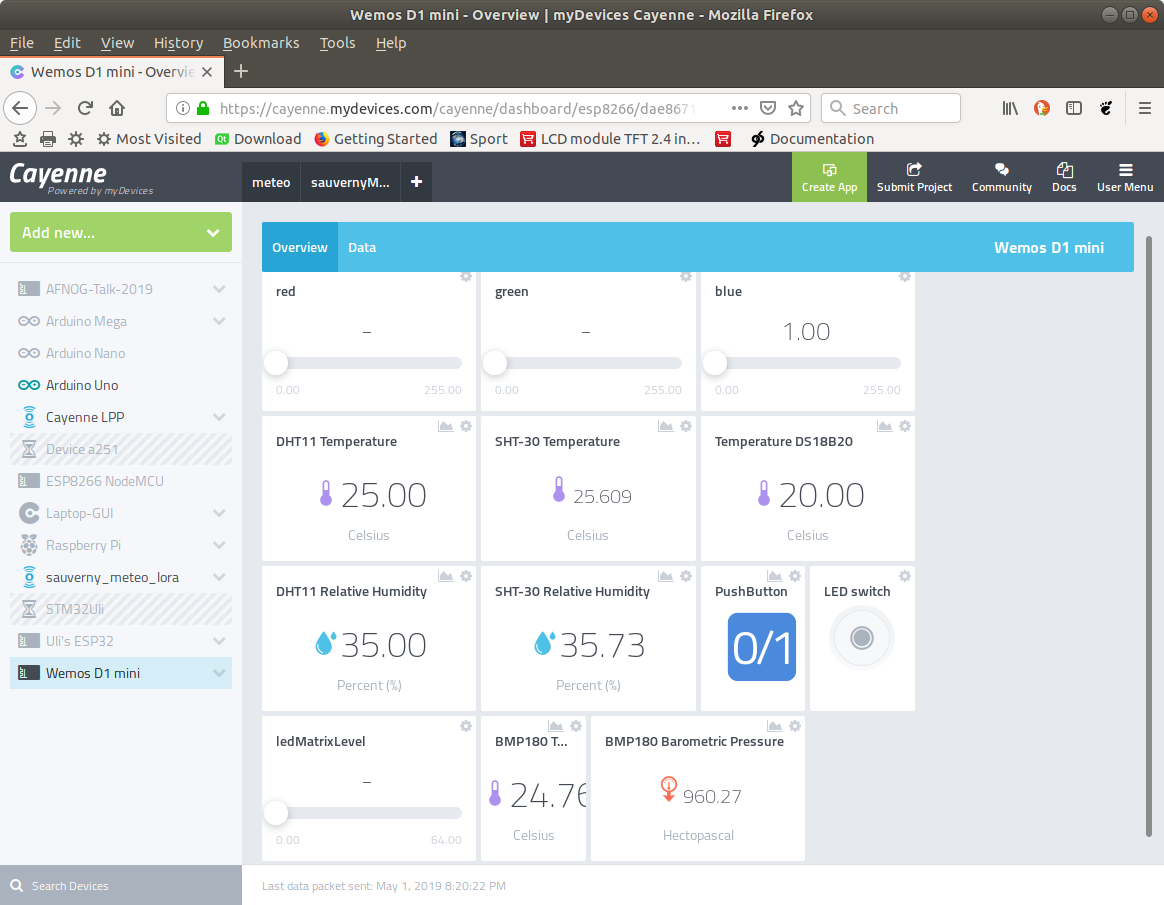
- MQTT broker is accessible at mqtt.mydevices.com
- Supplies GUI
Slide 17: Signing up for Cayenne
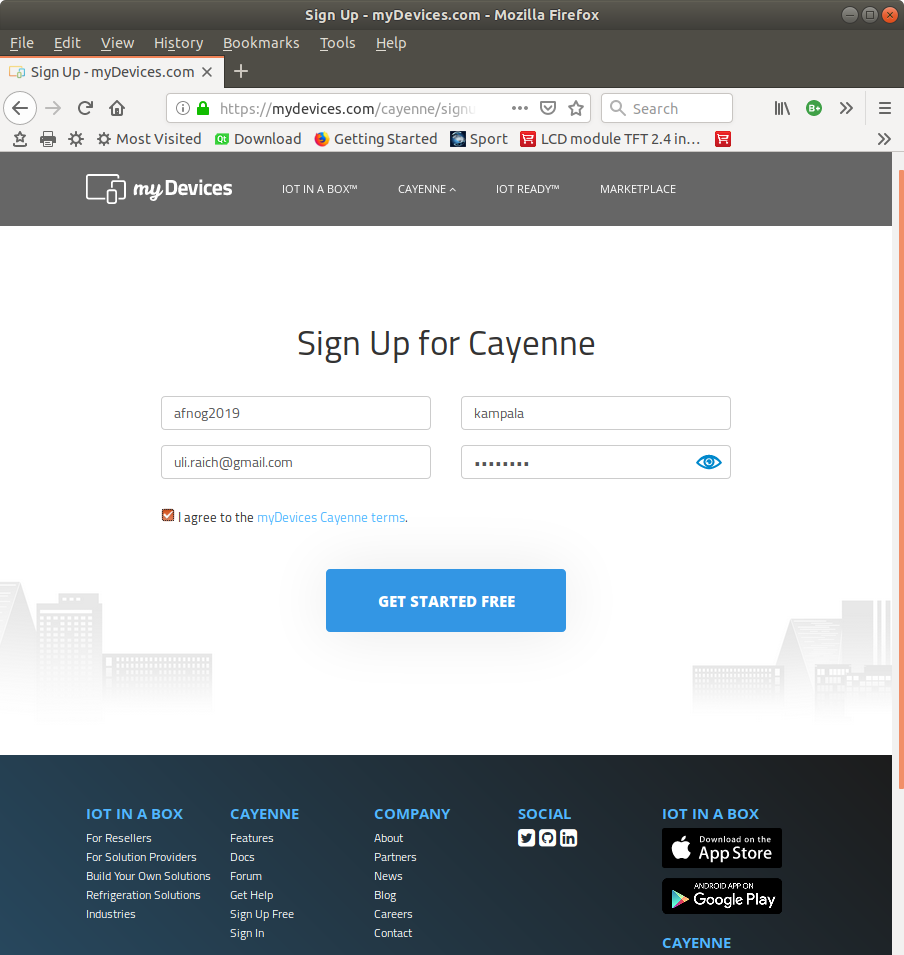
Sign up athttps://mydevices.com/cayenne/signup
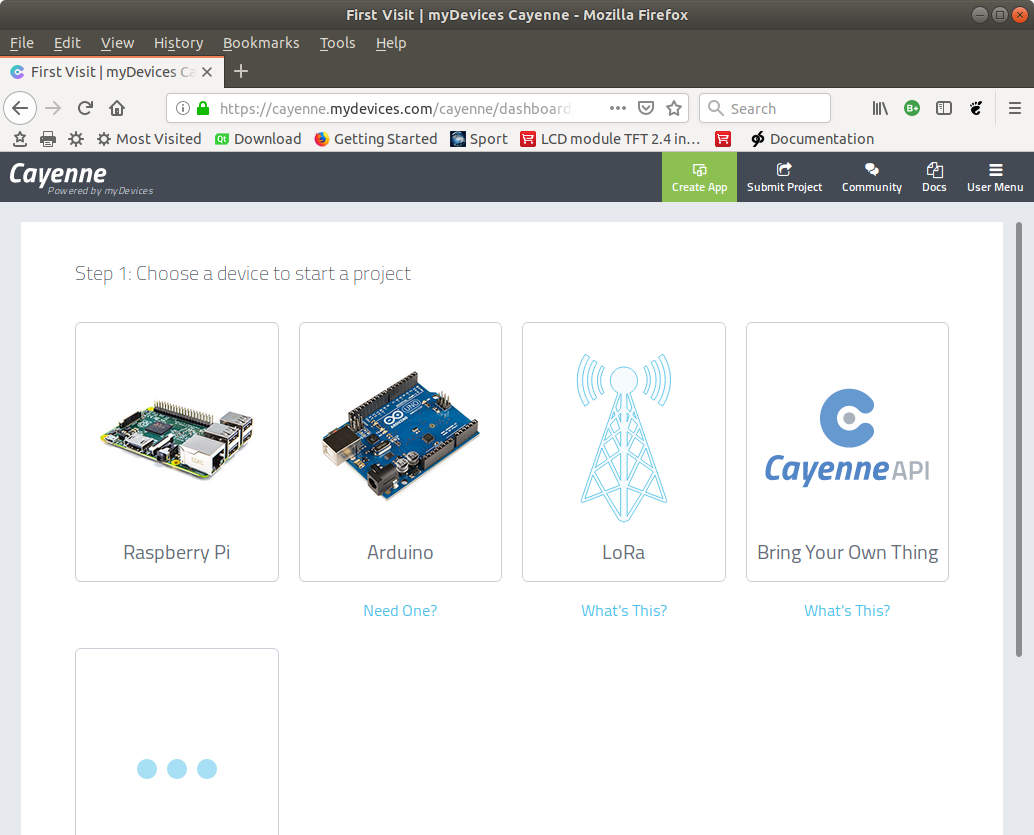
Slide 18: Cayenne Start
Slide 19: Cayenne Doc
You find the documentation at https://mydevices.com/cayenne/docs/intro Contains short introductory video clips, information of Cayenne on Raspberry Pi and Arduino but also how to use Cayenne on any device. Pointers to the Cayenne MQTT Libraries and their API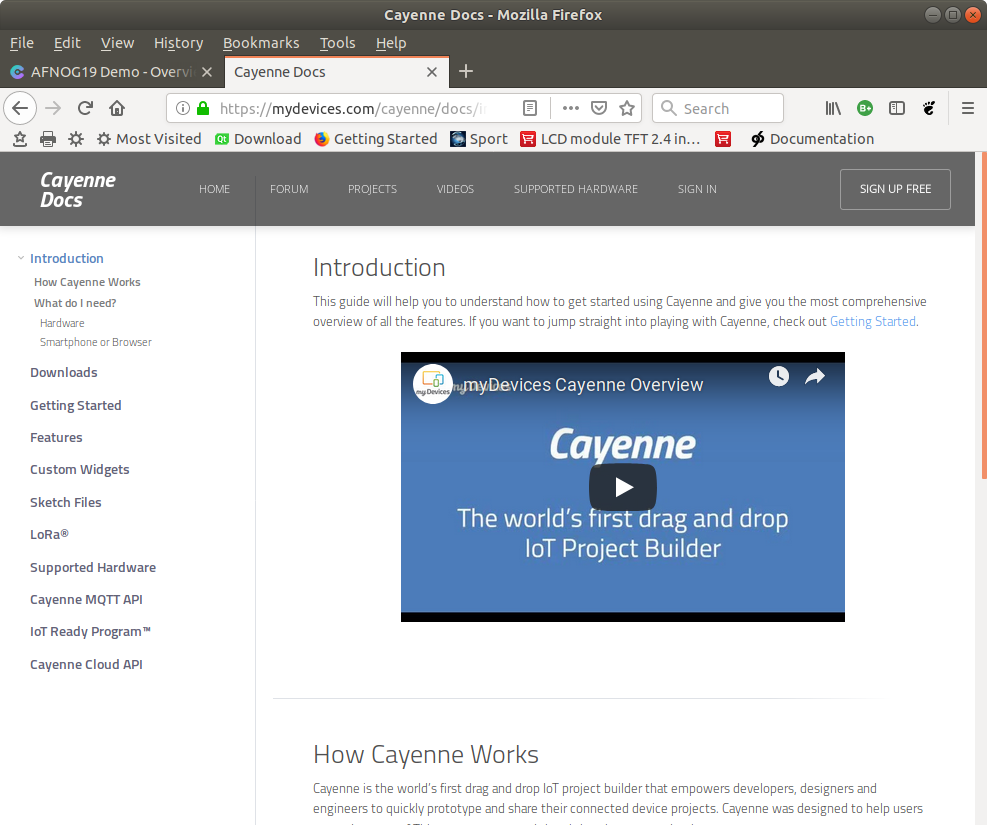
Slide 20: Installing Cayenne on the Raspberry PI
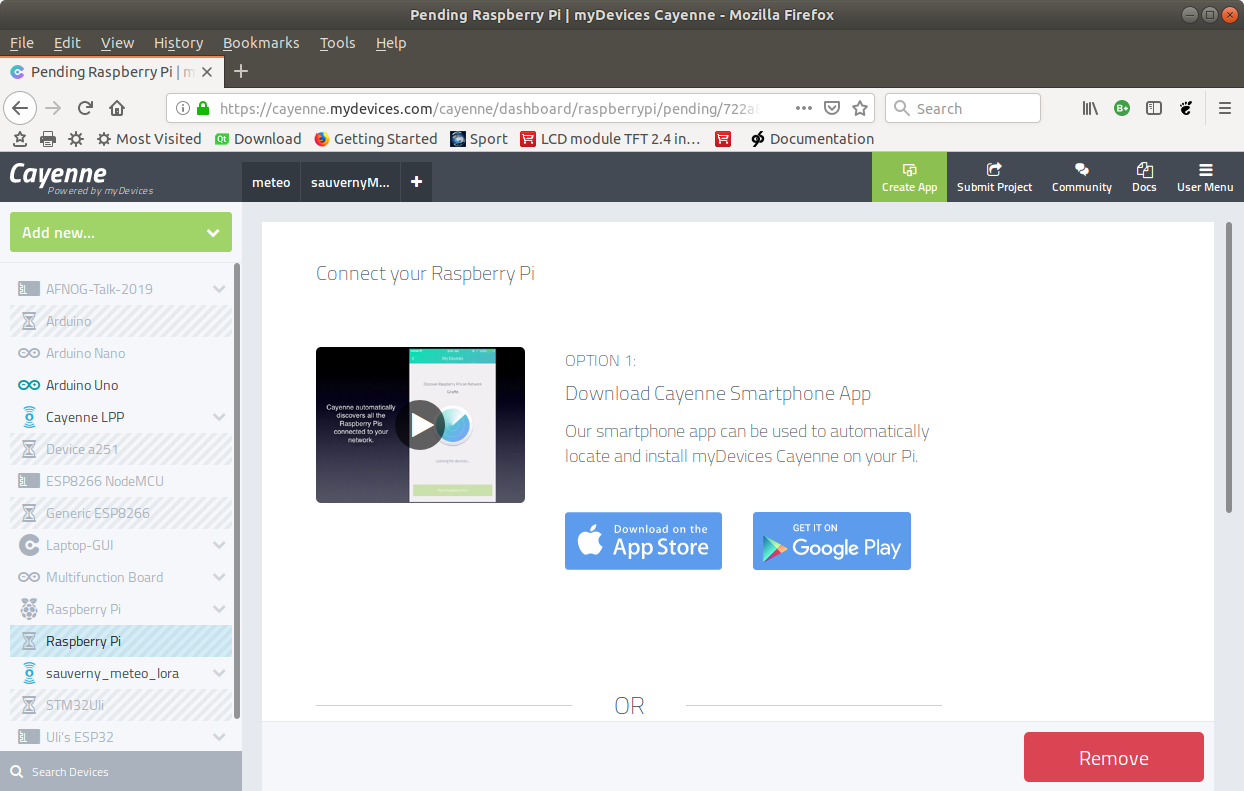
Slide 21: Installing Cayenne on the Raspberry Pi manually
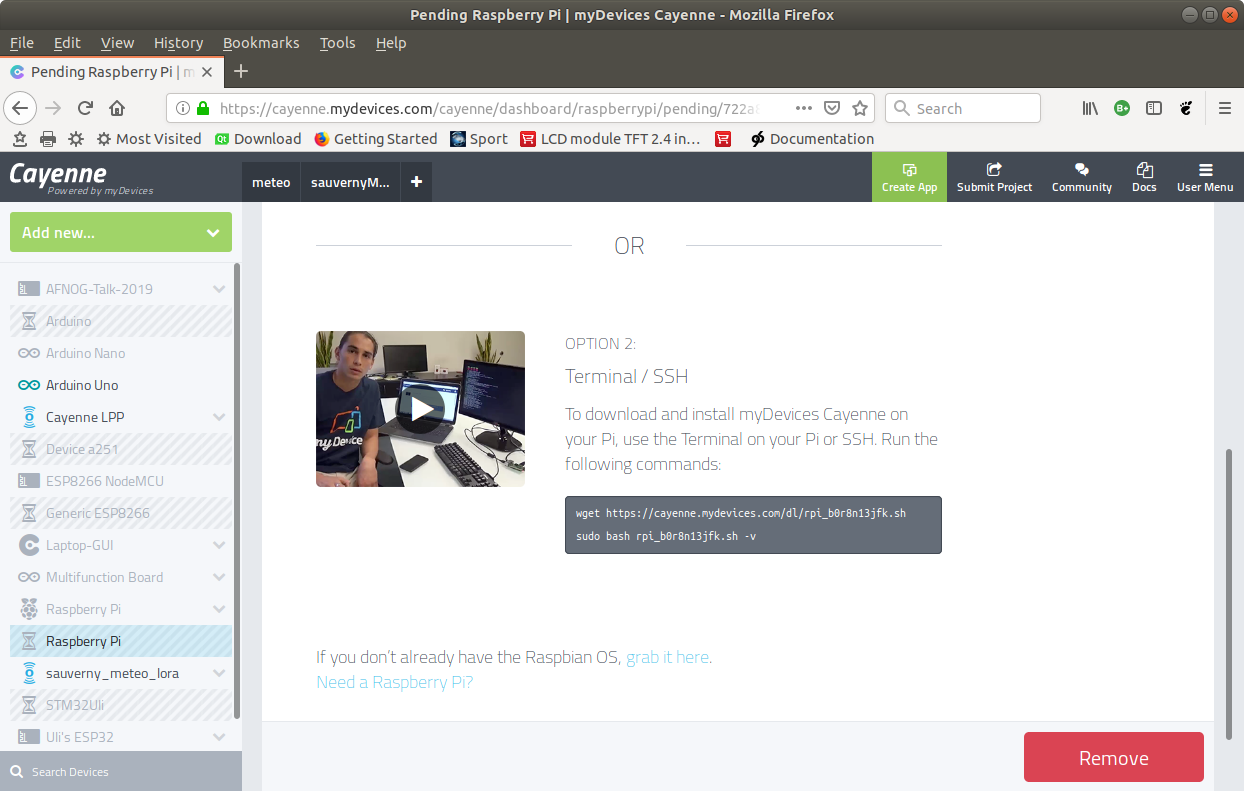
Slide 22: Register your Controller Single Board Computers
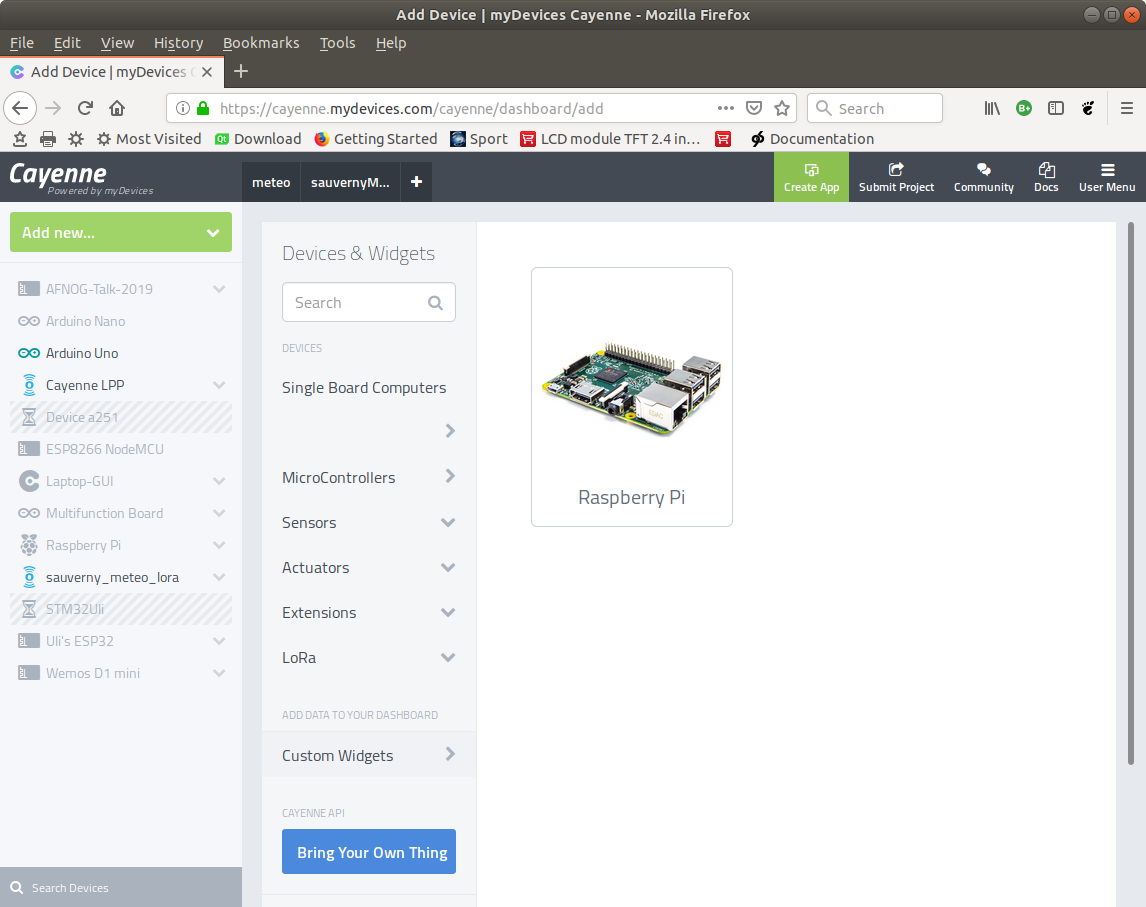
Slide 23: Run Cayenne on the Arduino
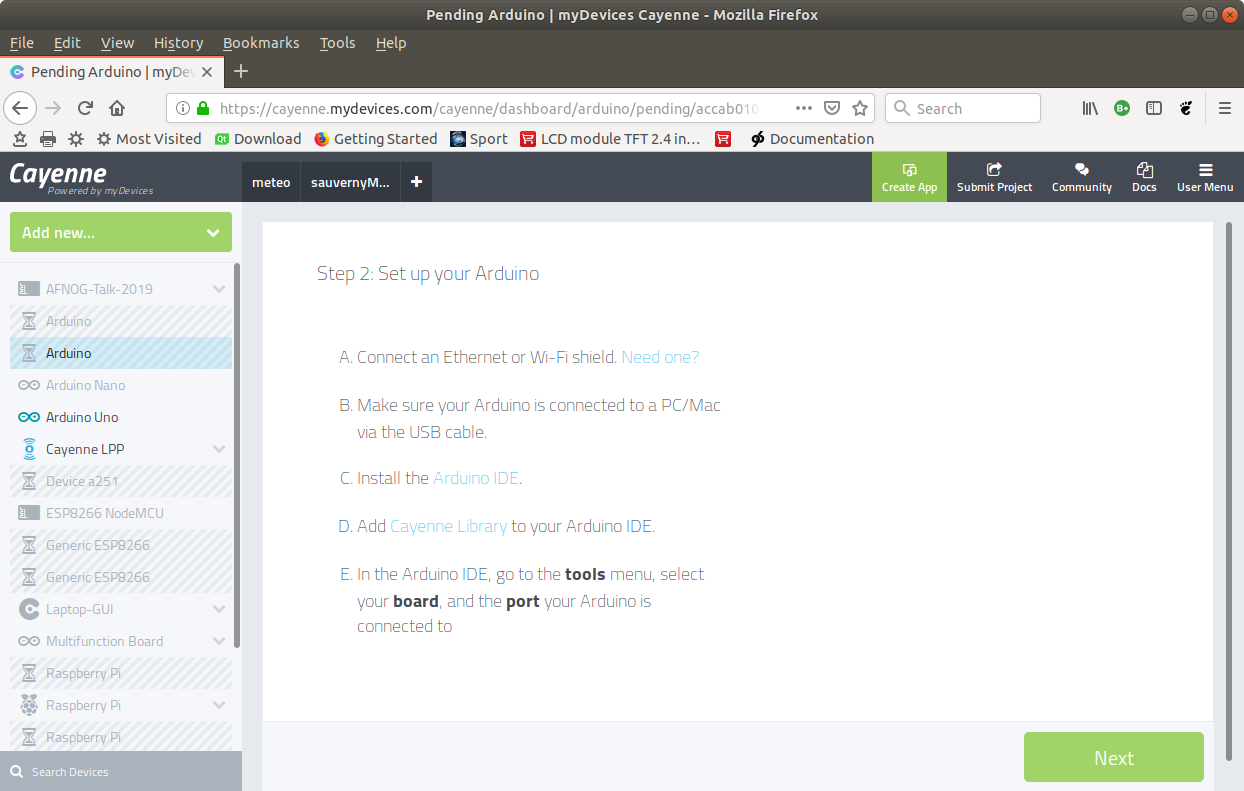
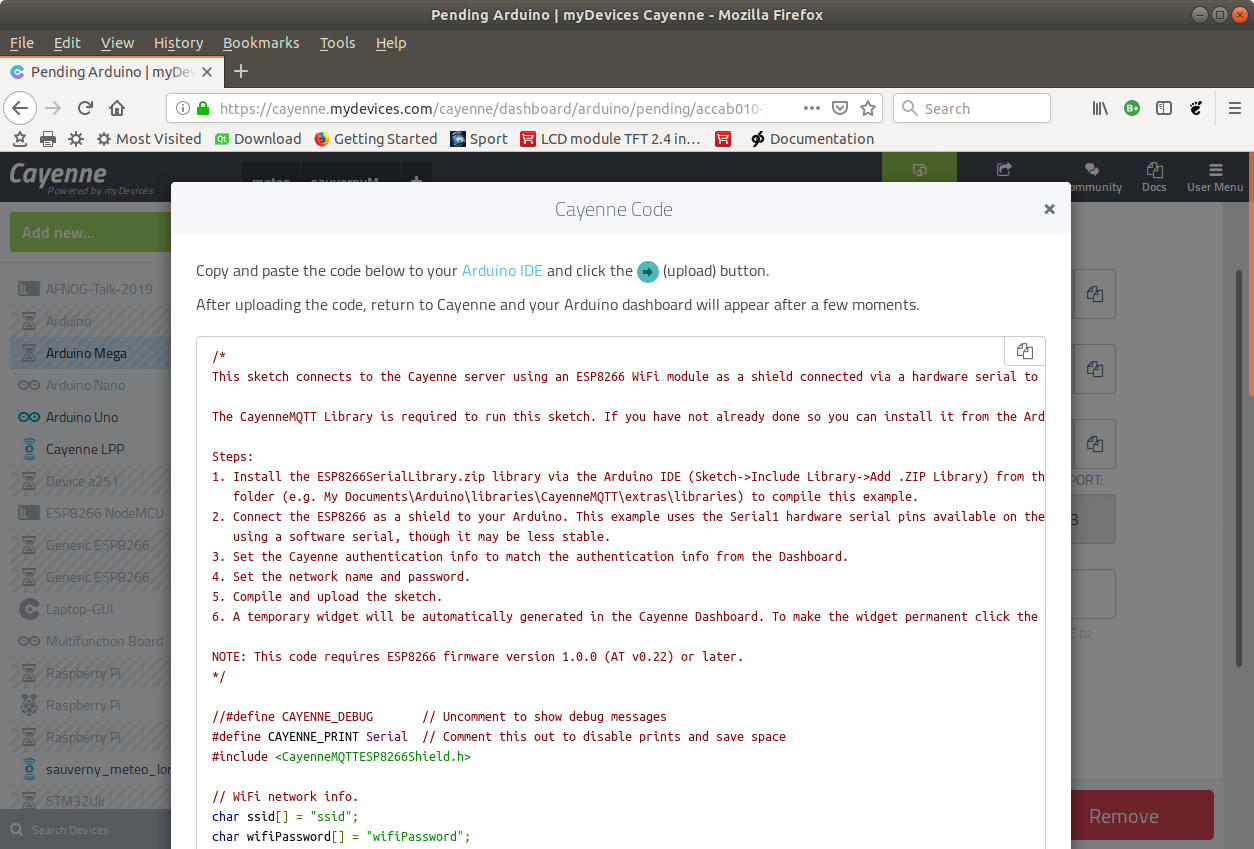
Slide 24: Basic Arduino Sketch for the Arduino
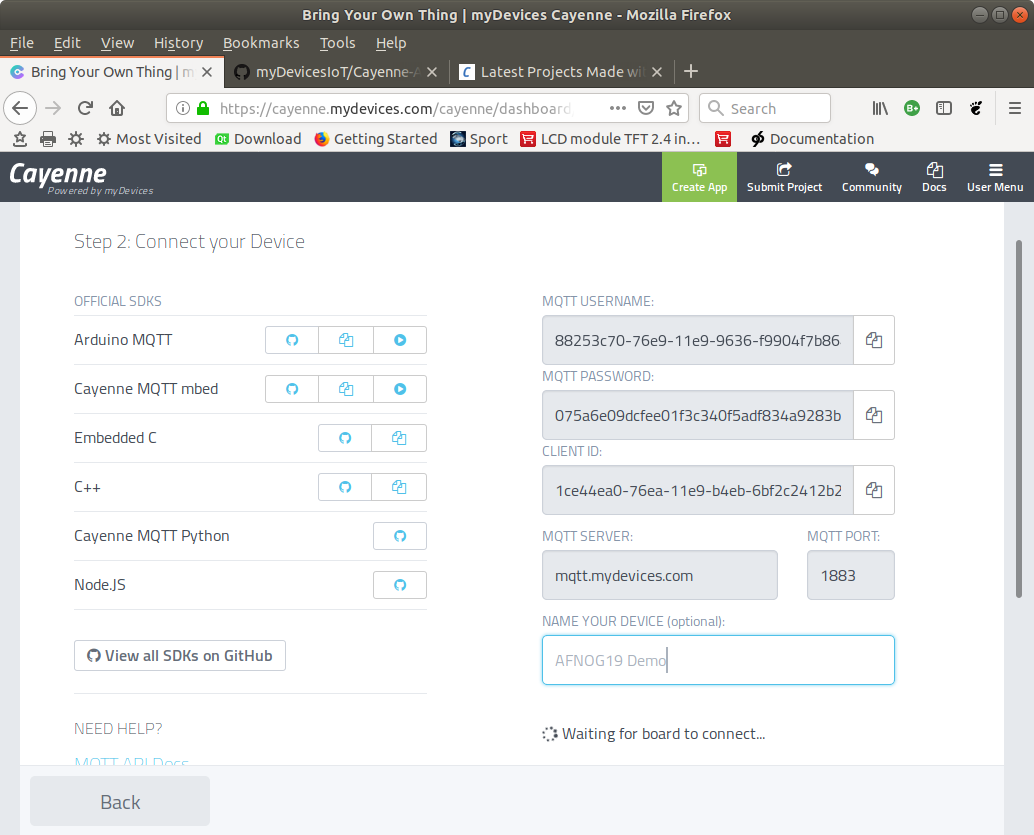
Slide 25: Cayenne Credentials
Slide 26: Cayenne network layers
 The Cayenne credentials are integrated into the MQTT topic string
Value and units are integrated into the payload string
Slide 27: Cayenne and Python
This falls under \x93bring your own thing\x94 !Having a look at the Arduino sketch you can see that it uses the
Arduino Cayenne C++ library.
Cayenne MQTT libraries are available in
- C, C++
- Python
- Java
Slide 28: Cayenne and Micropython
The Python Cayenne Client library depends on the Eclipse Paho MQTT libraryMicropython uses its own, stripped down \x93umqtt\x94 (micro mqtt) library such that the standard Cayenne Client does not work on Micropython
but \x85
The Python Cayenne Client is Open Source and can be adapted to umqtt, which is what I did for you. The adapted Client library uses the same API as the original one, which means that the example programs work unchanged.
Slide 29: The Cayenne Client
When creating a Cayenne Client Class it- Initializes its internal variables
- Checks if the OLED display is connected and if yes, initializes it
- The Cayenne Client has has a begin method which
- Connects to WiFi
- Connects to the Cayenne MQTT broker at mqtt.mydevices.com
- Subscribes to commands send by Cayenne
- Displays its internal state on the OLED display
Slide 30: The code to connect to Cayenne
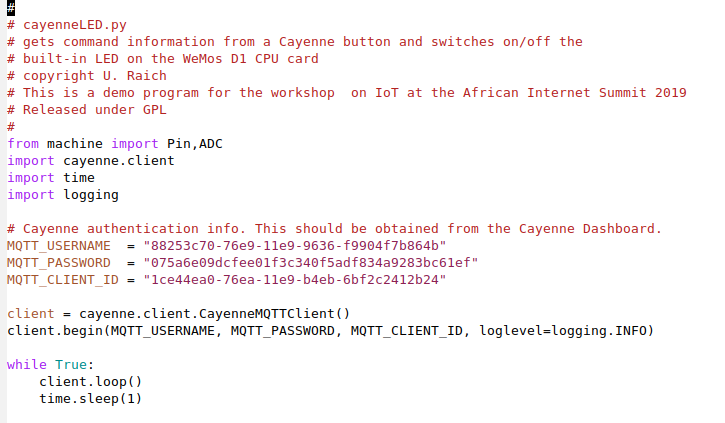
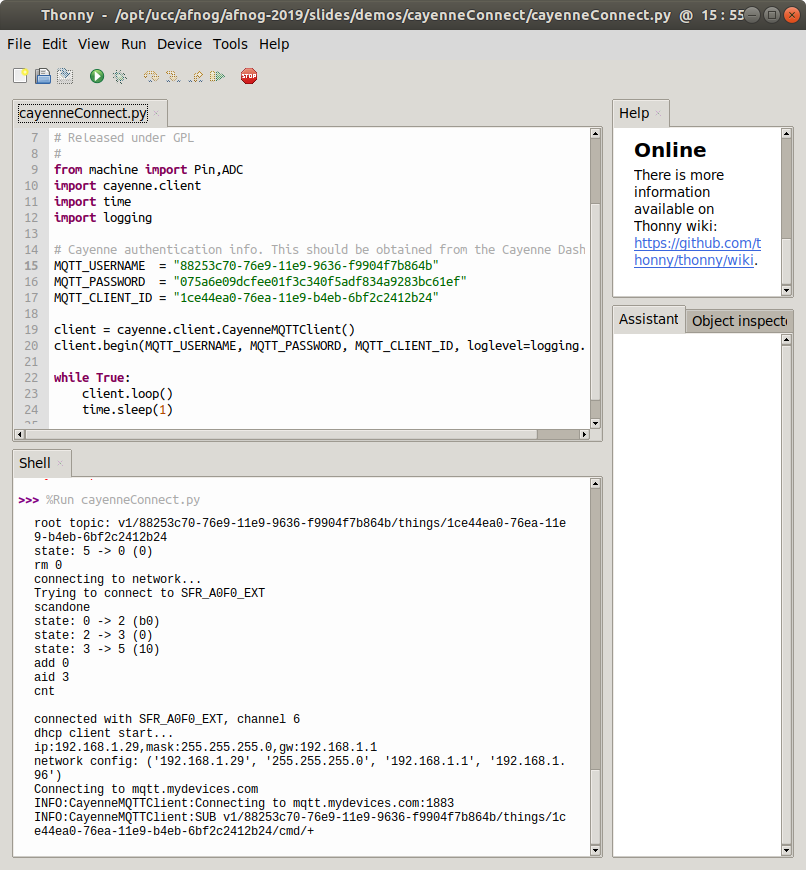
Slide 31: Connecting to Cayenne
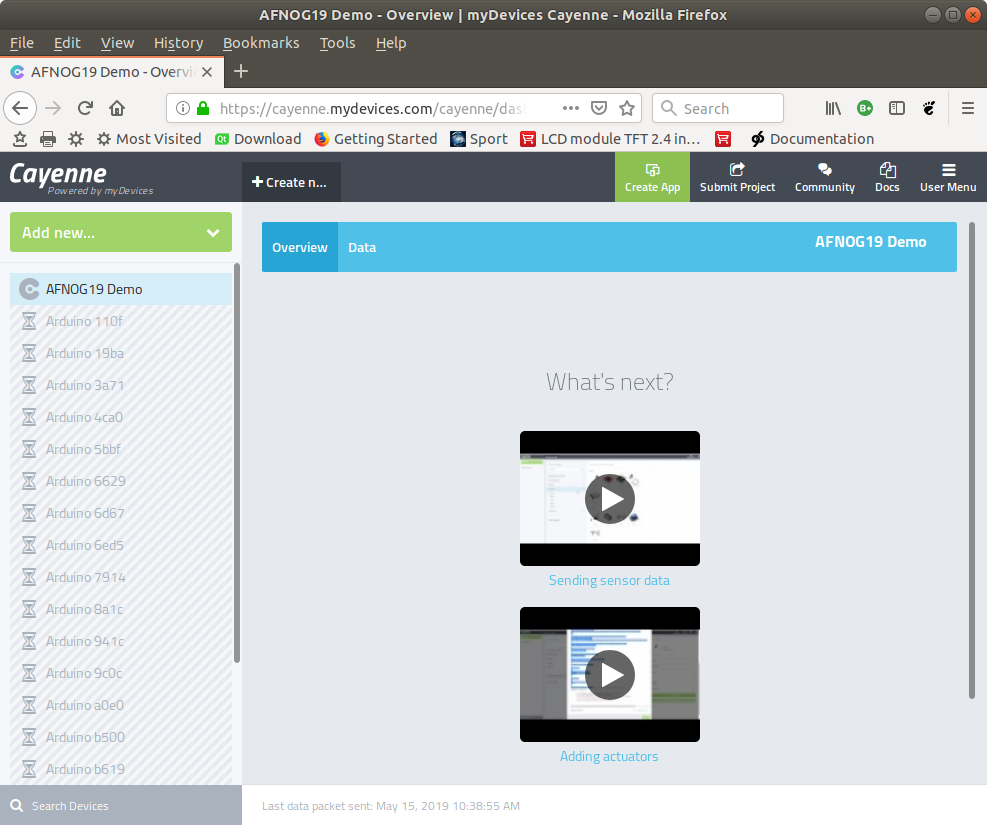
Slide 32: The empty Cayenne dashboard
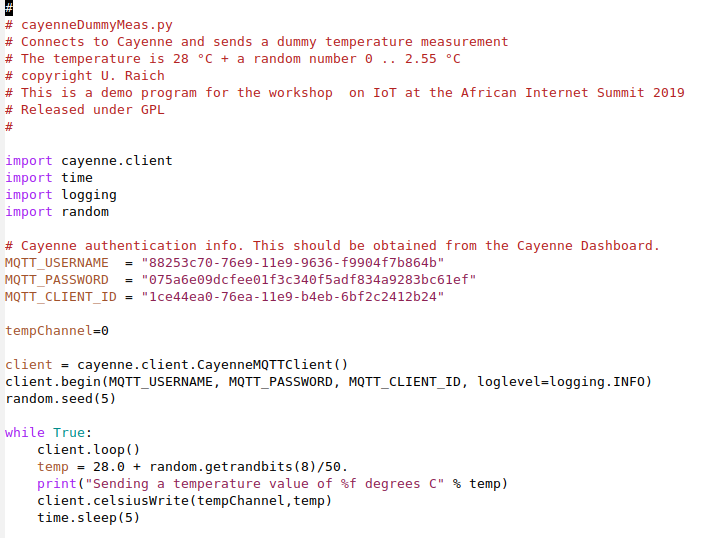
Slide 33: Send dummy measurement
Slide 34: Dummy temperature in Cayenne
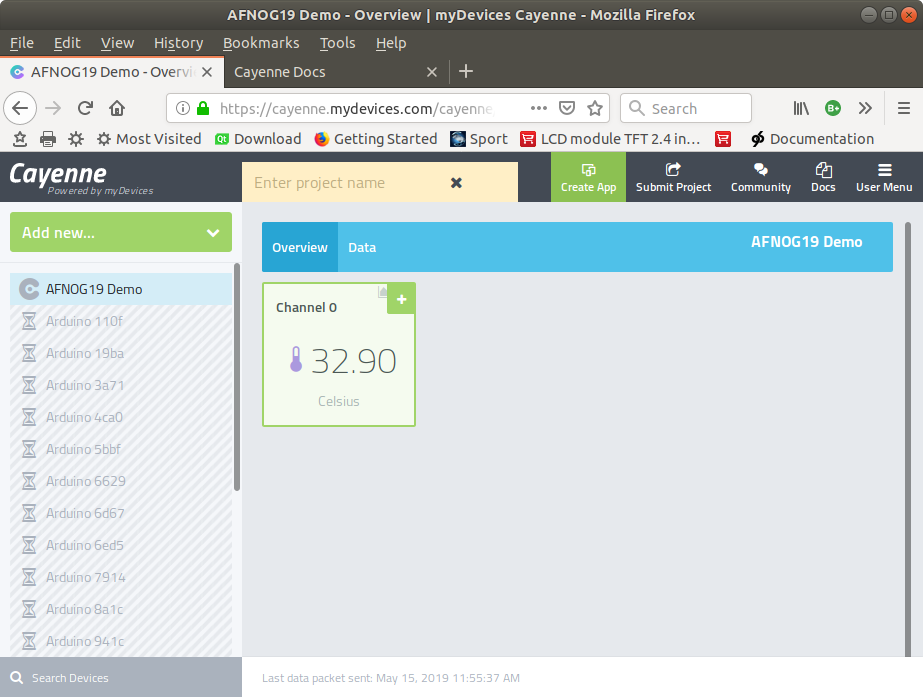
Slide 35: Dummy temperature parameters
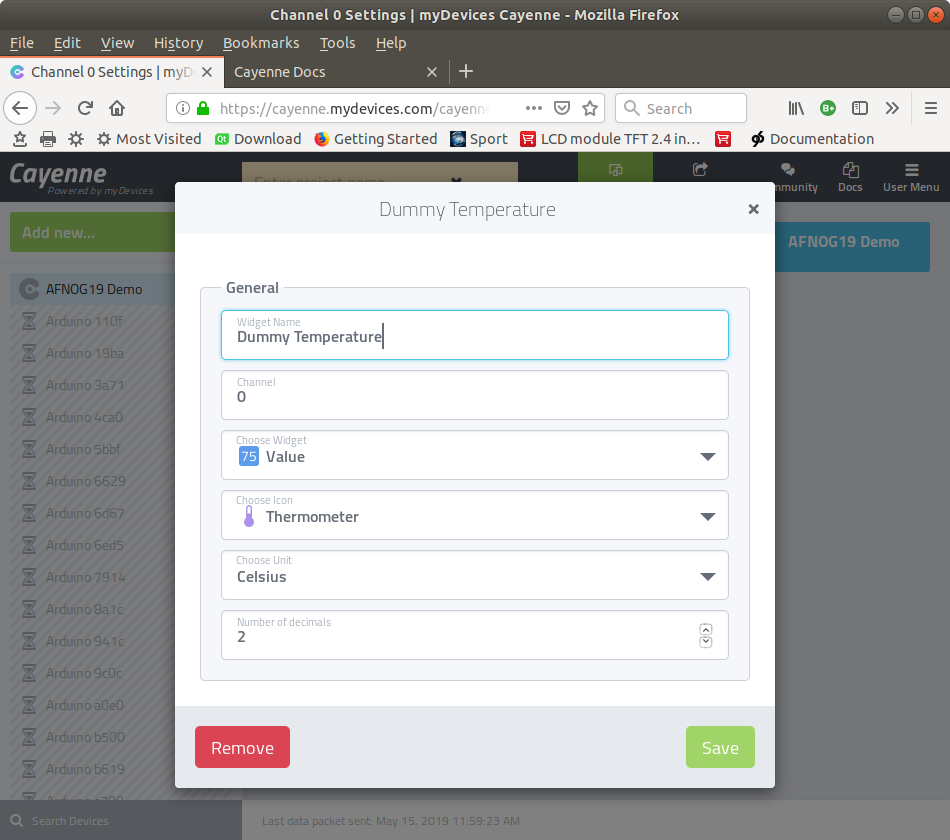
Slide 36: Fix widget to dashboard
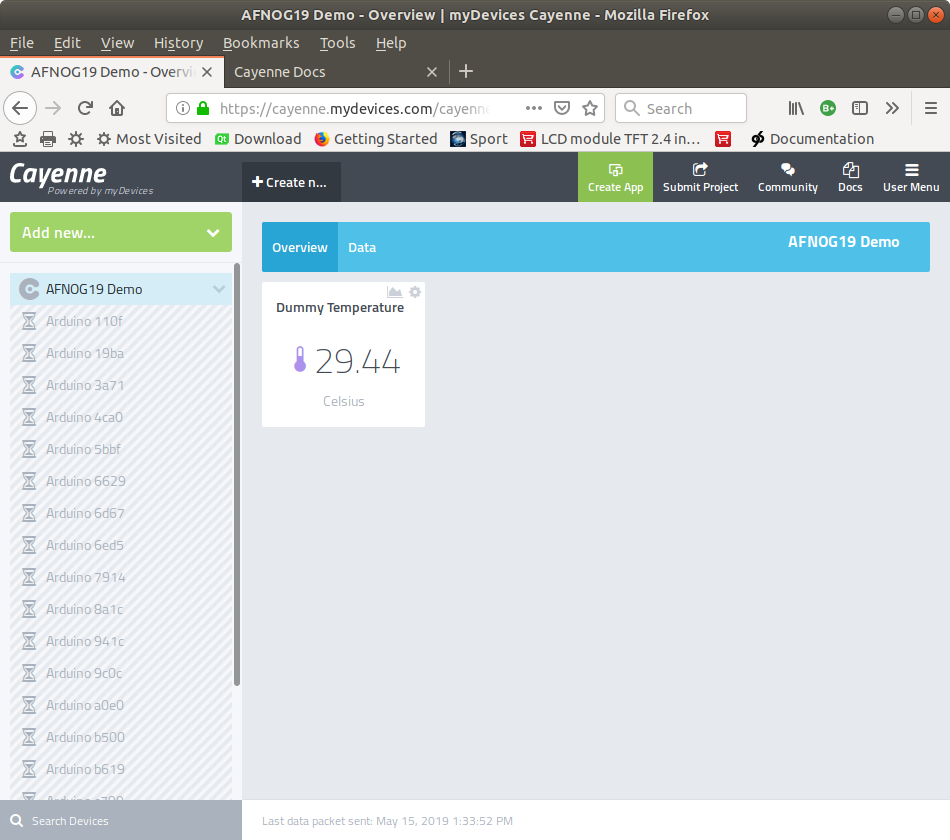
Slide 37: Dummy temperature history
Cayenne keeps measurement values which can be plotted as a history plot or downloaded for further evaluation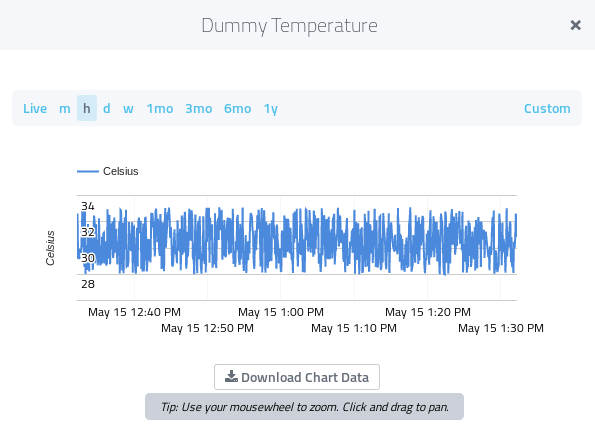
Slide 38: A custom widget
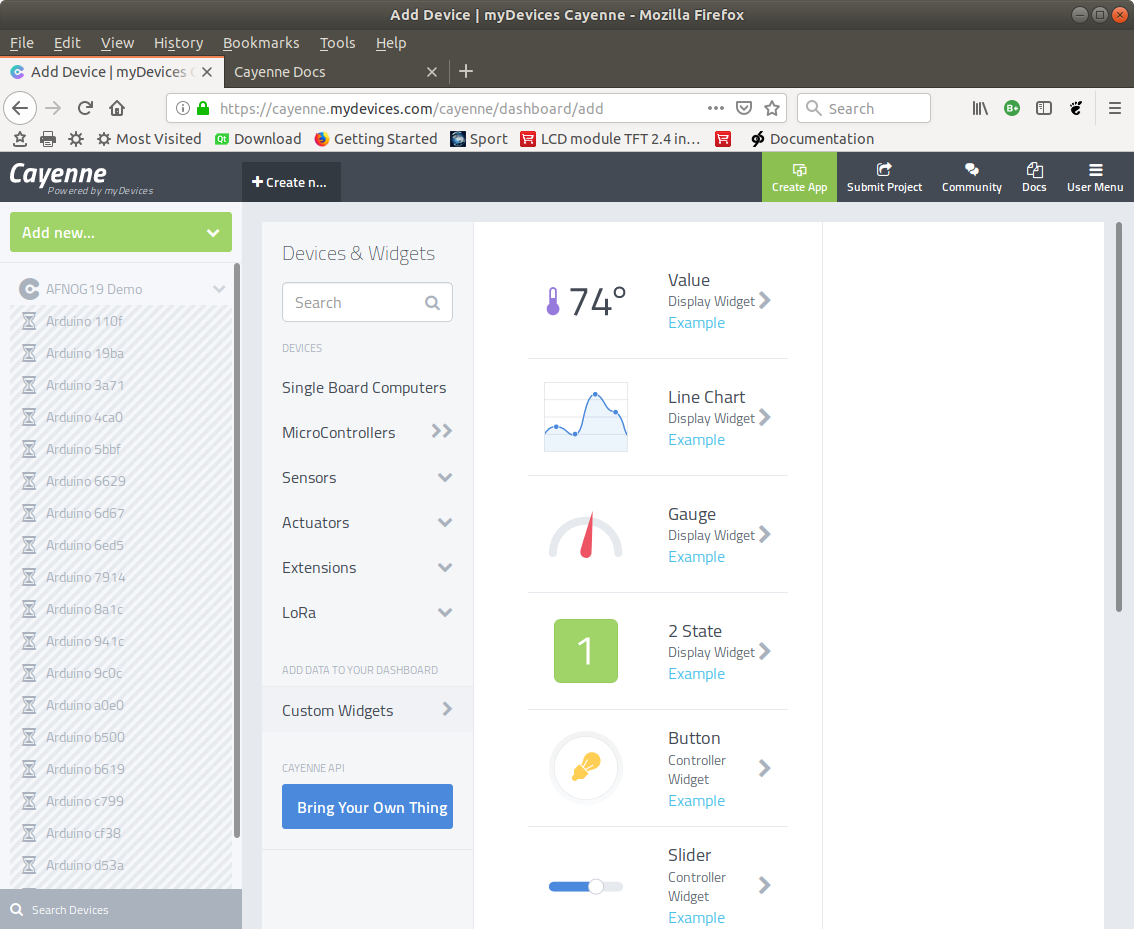
Slide 39: A gauge widget
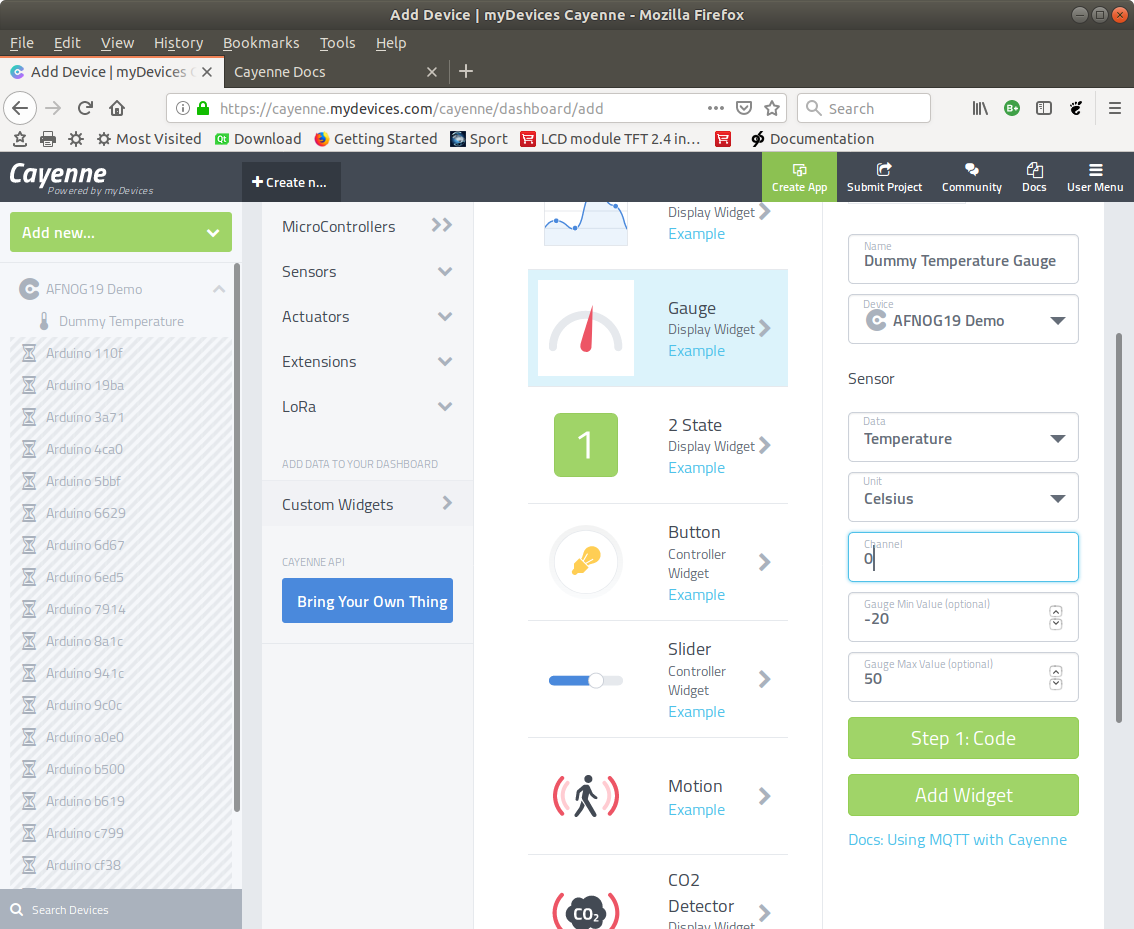
Slide 40: Dummy temperature gauge on the dashboard
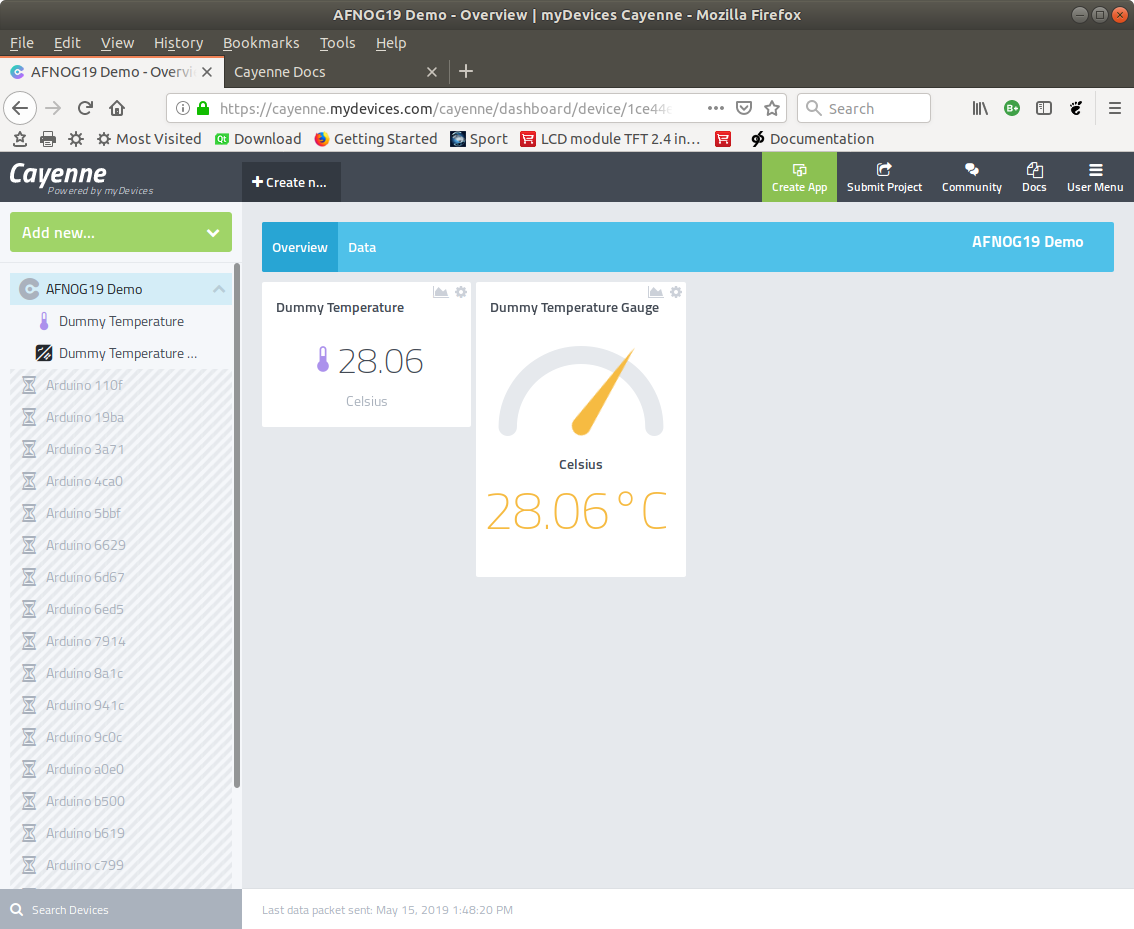
Slide 41: Gauge value ranges
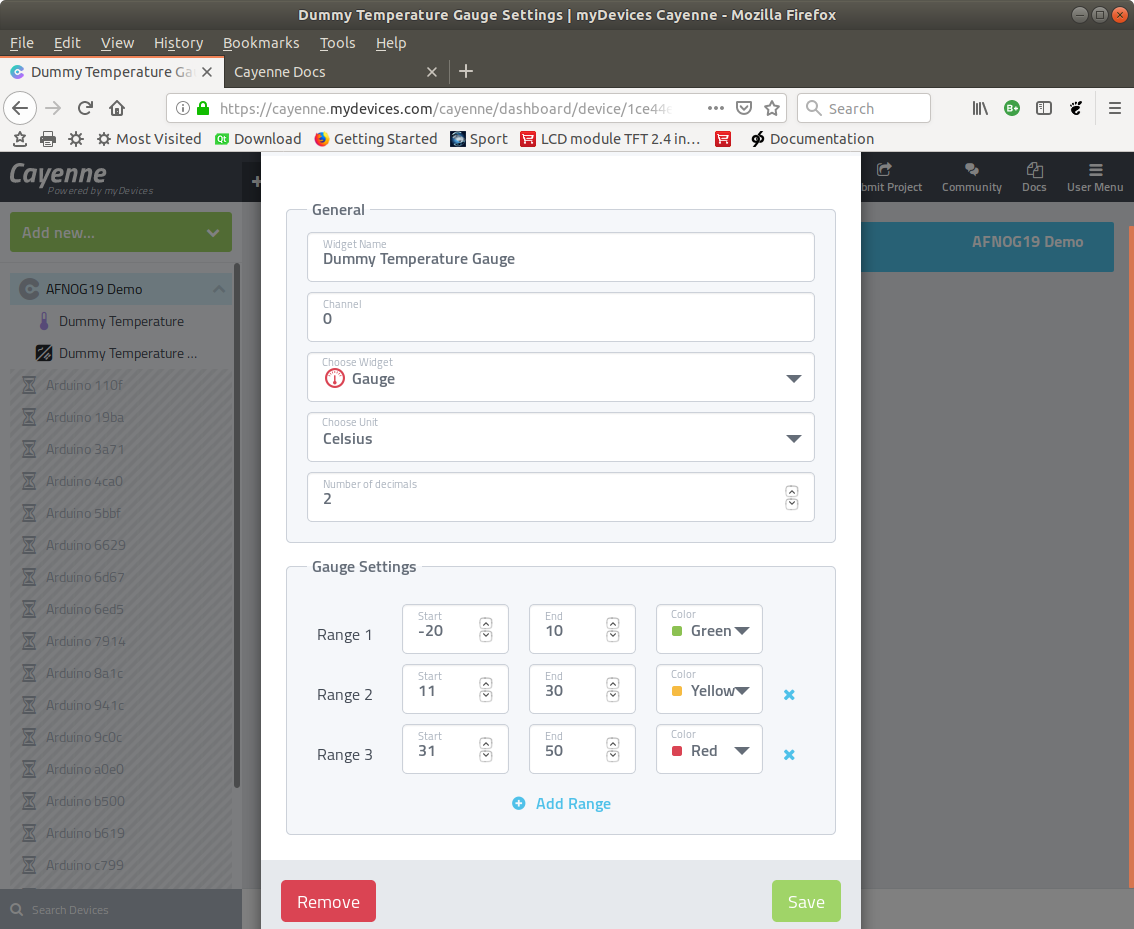
Slide 42: It's hot!
Slide 43: Several dummy measurements
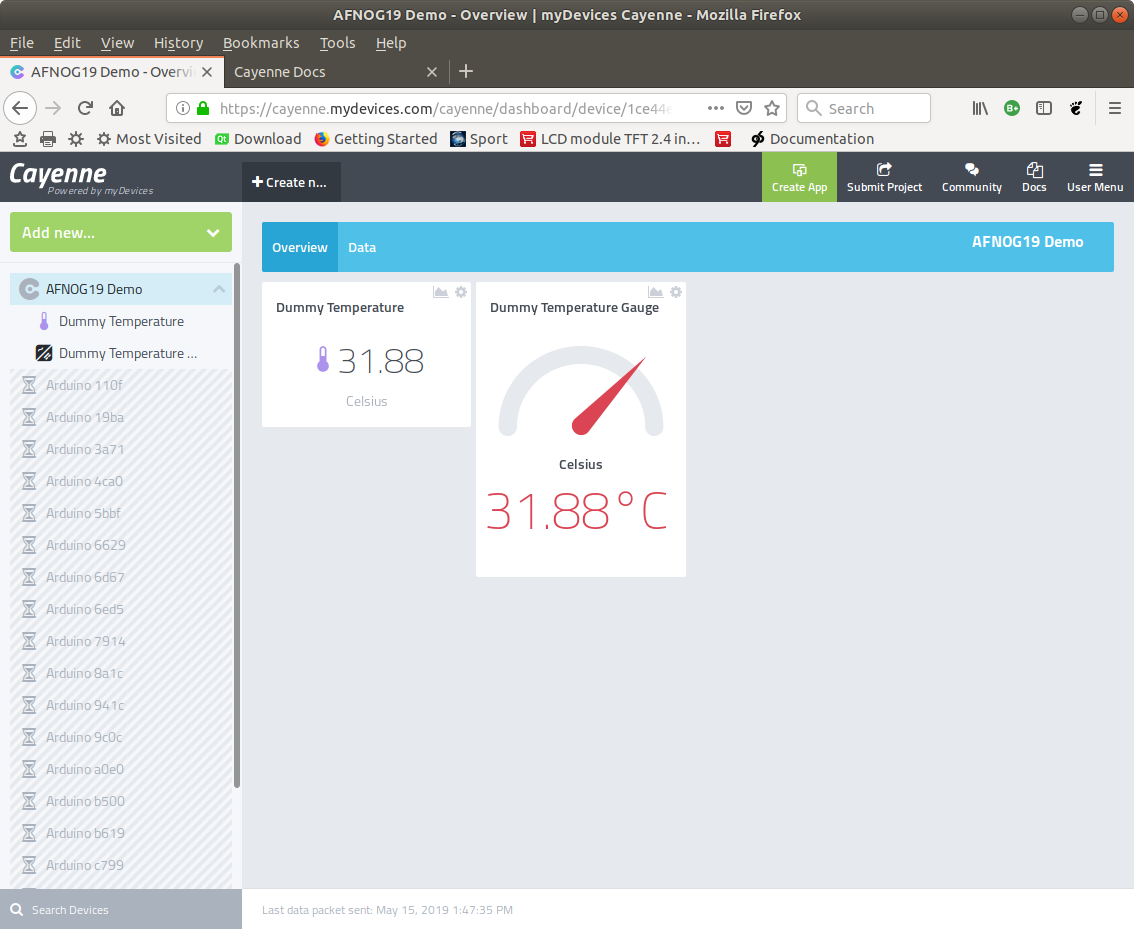
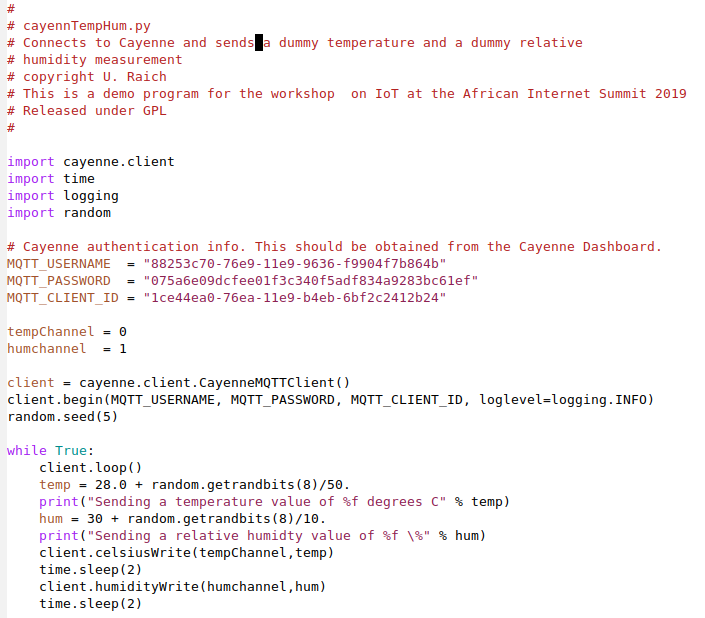
Now we want to send a dummy temperature and a dummy humidity value.How do we distinguish?
They use different communication channels!
Slide 44: Sending temperature and humidity: the code
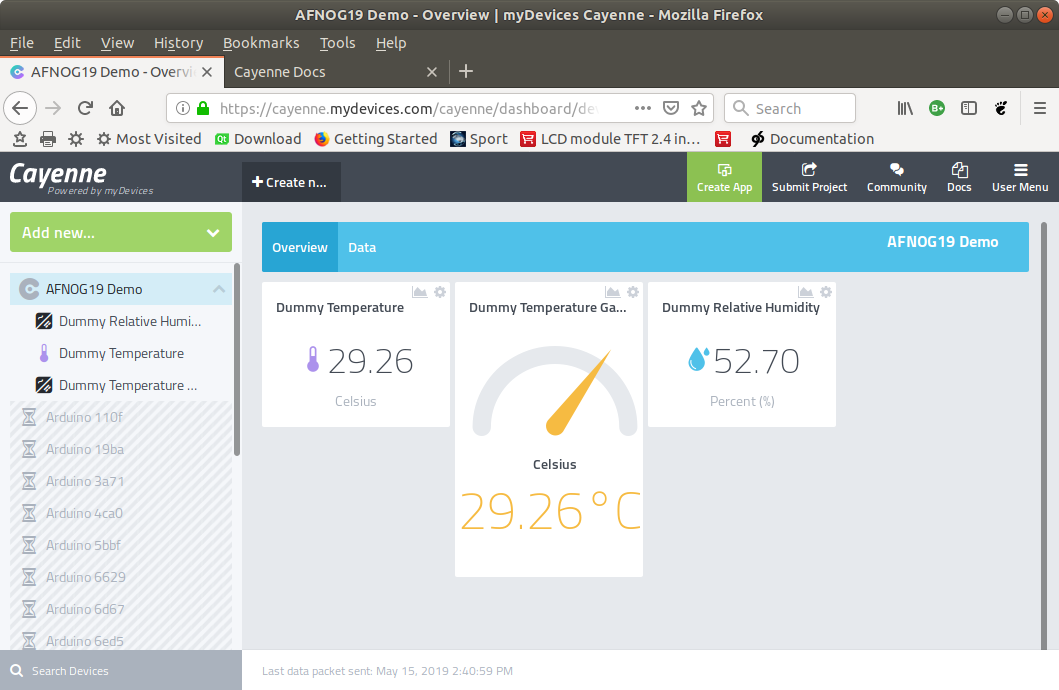
Slide 45: Dashboard with temperature and humidity
Slide 46: Other measurements
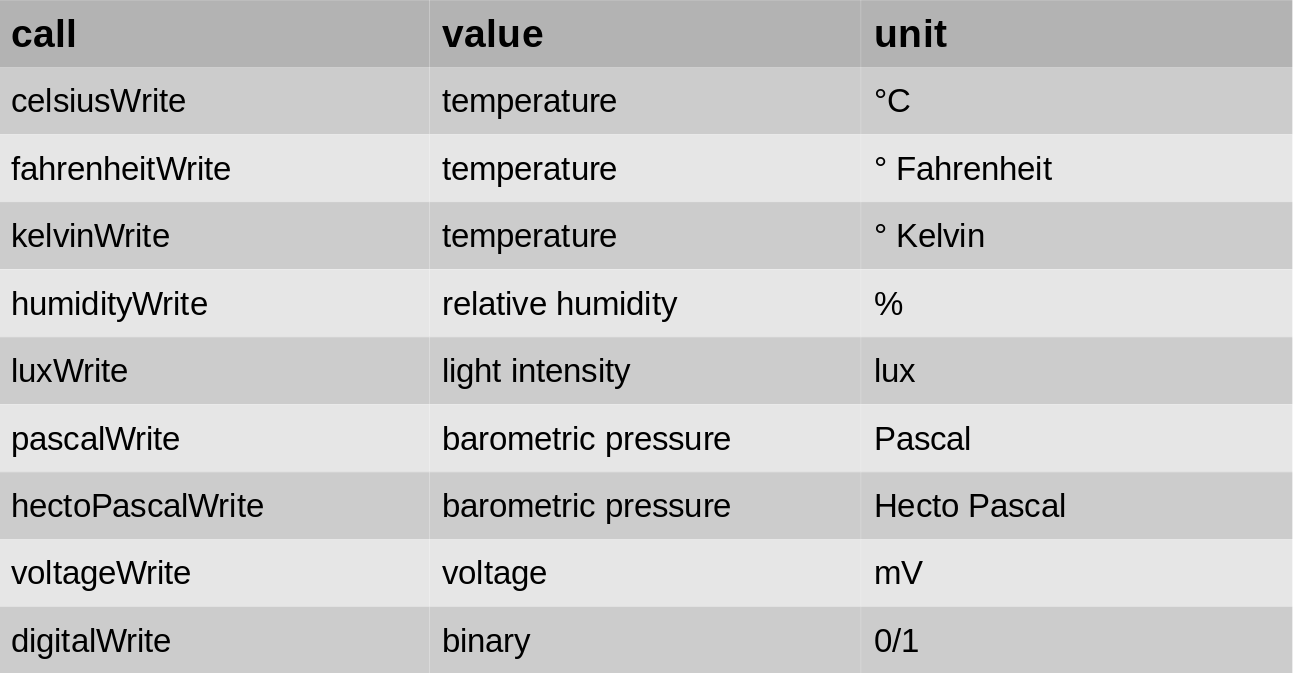
We have seen that we can send temperature with- client.celsiusWrite(channel,temp)
- Client.humidityWrite(channel,hum)
Slide 47: Measurements implemented in the Cayenne Client
Slide 48: How to control a device?
Cayenne supplies only 2 control widgets:- a push button
- A slider
Slide 49: Cayenne Slider
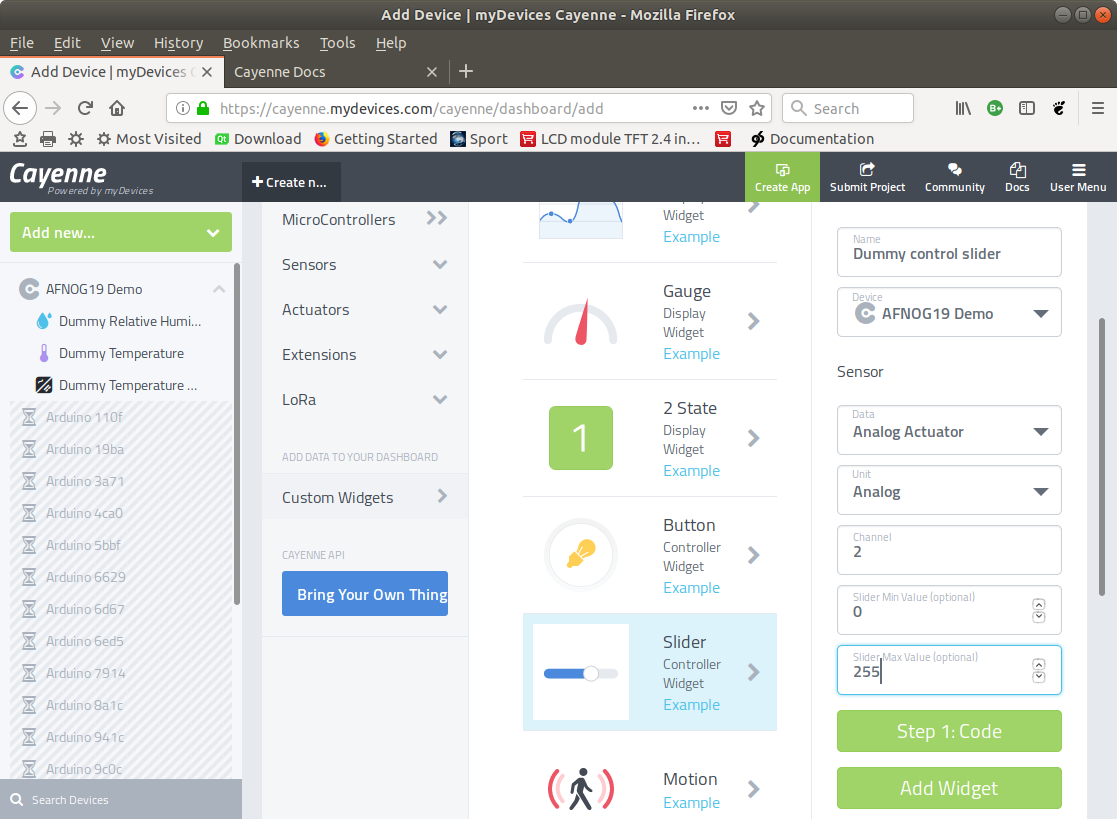 We can define the range for the slider in the above case: 0..255
Slide 50: Slider on the dashboard
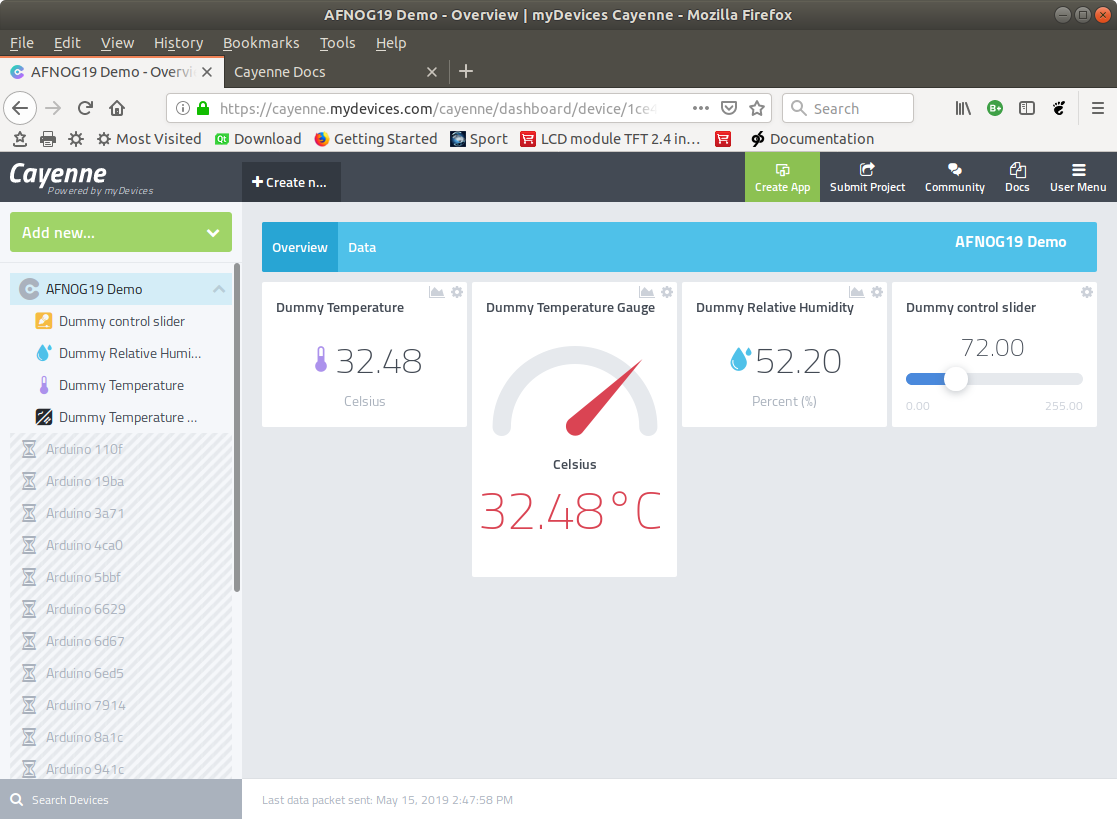
Slide 51: A Cayenne Button
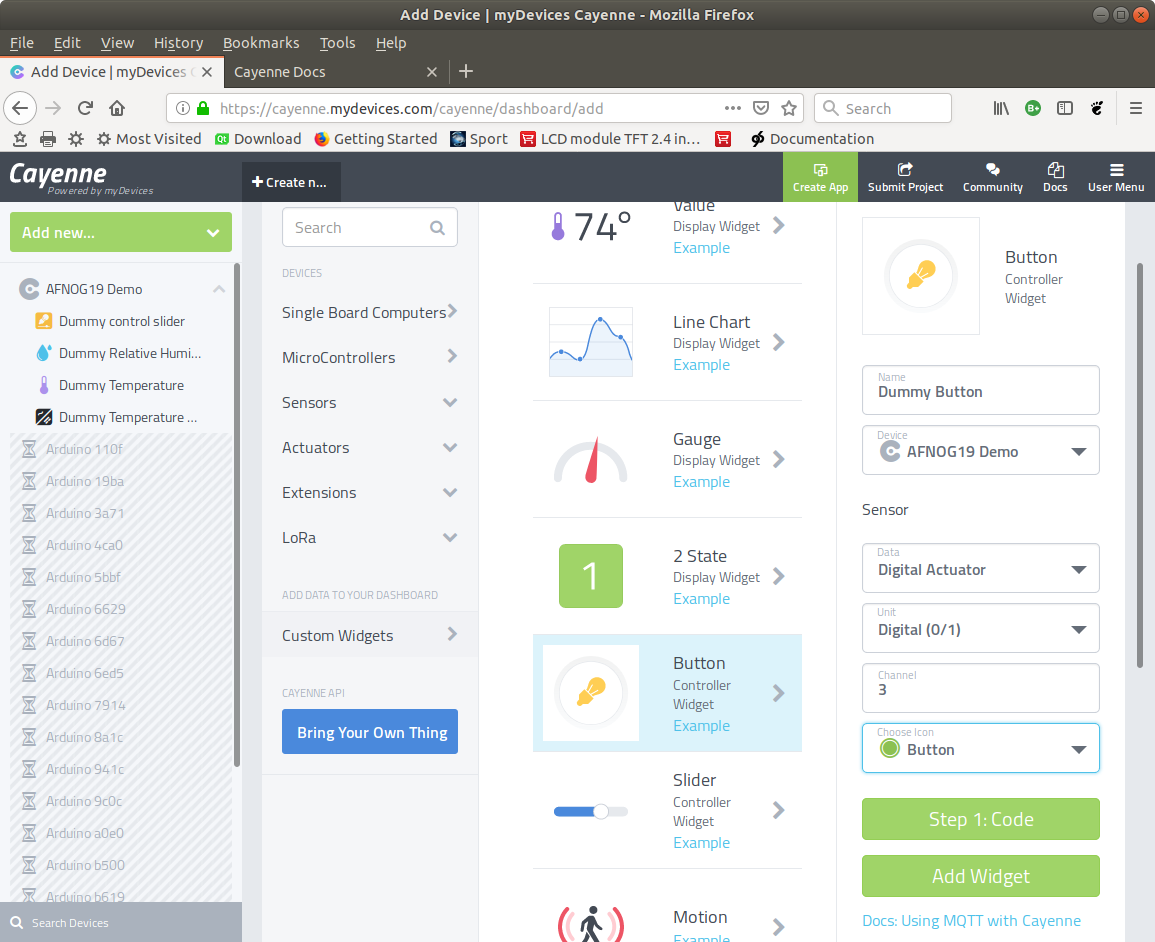
Slide 52: Dashboard with button
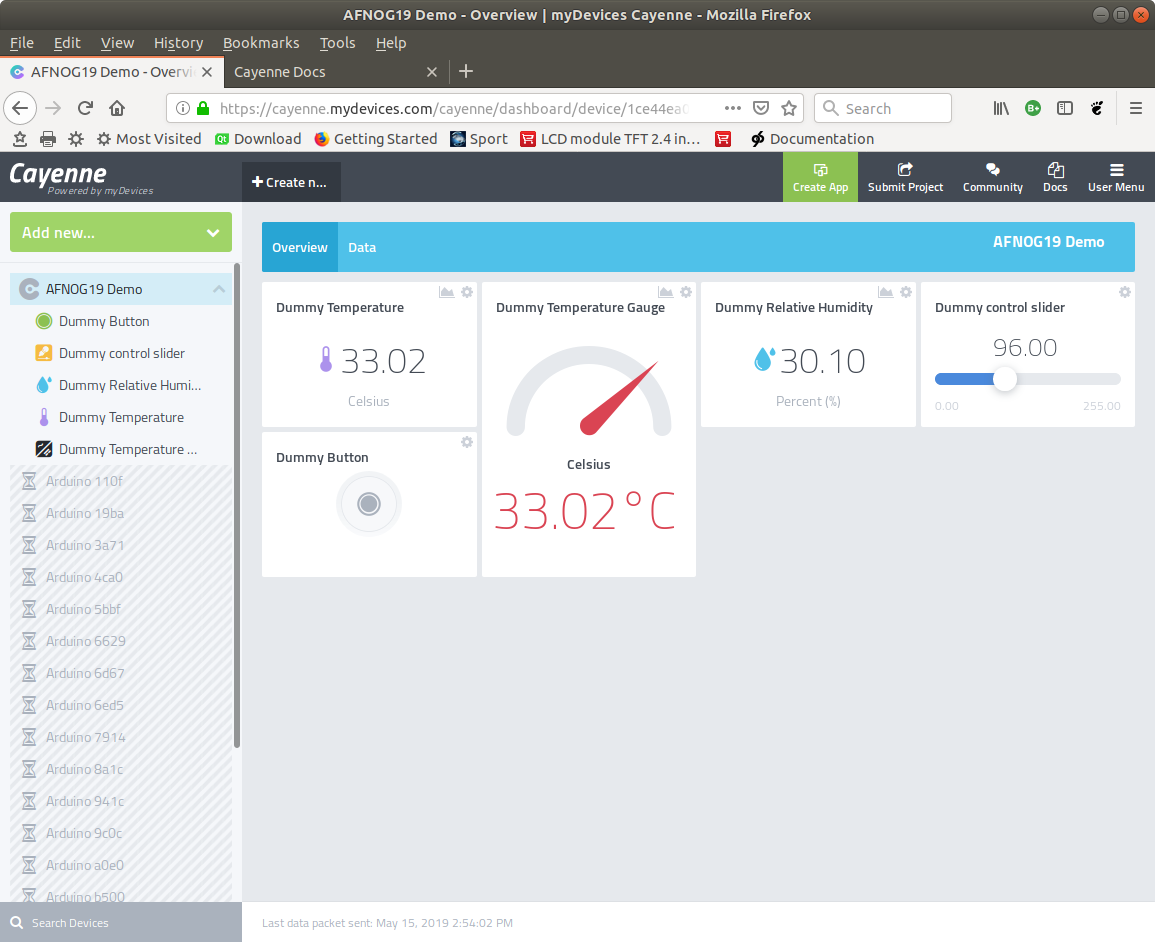
Slide 53: How to receive commands
We must define a callback function, which is called whenever the user of the Cayenne dashboard changes a setting on the push button or sliderThe callback takes a message parameter which is a tuple of
- Cayenne topic
- Cayenne payload
Slide 54: Cayenne command message
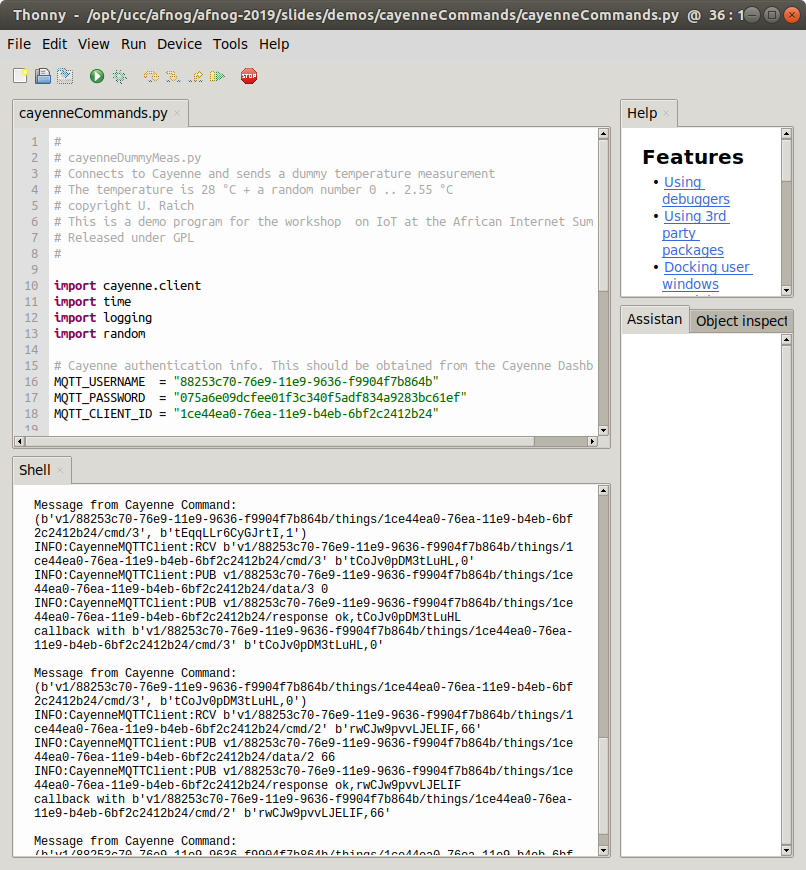 Please compare the command message with our credentials and try to find out
to which channel this command has been addressed. Can you find the values as well?
Remember: we defined the push button on channel 3 and the slider in channel 2!
Slide 55: Exercises!
More on how to interpret this message in the next session -- %USERSIG{UliRaich - 2019-05-14}%Comments
























































































Topic revision: r9 - 22 May 2019, UliRaich