
Accessing the Python interpreter
MicroPython
MicroPython implements the Python 3.4 syntax. It is Open Source and can be downloaded from its GitHub repository . There are versions for different kinds of processors and descriptions on how to build and flash the interpreter. The ESP32 port is based on the ESP-IDF development environment provided by Espressif, the company behind the ESP processors. They also provide the xtensa-esp32-elf-gcc cross compiler and associated libraries. Going into details on how we built the interpreter would go beyond the limits of what this course can teach. Let's suppose that the interpreter is already installed in the ESP32 flash and ready to run. Details about MicroPython is found in its documentation, which has a chapter dedicated to ESP32 functionality. For convenience a MicroPython firmware binary, as well as the scripts needed to erase the ESP32 flash and to program it with the firmware are given here: https://iotworkshop.africa/pub/IoT_Course_English/AccessingThePythonInterpreter/firmware.bin https://iotworkshop.africa/pub/IoT_Course_English/AccessingThePythonInterpreter/esp32_erase.sh https://iotworkshop.africa/pub/IoT_Course_English/AccessingThePythonInterpreter/esp32_flash.sh Instead of using the scripts you can also erase the flash with make erase After building the interpreter, you can flash it with make deployAccessing the interpreter though the serial line
In order to connect to the ESP32 we need a serial terminal emulator like minicom, gtkterm or seyon. Later on we will use thonny as an editor to write our Python scripts and save them on the PC but also to connect to the ESP32 through thonny's command window. Here I give you an example how to configure minicom for use with MicroPython on the ESP32. First you must start minicom as root with the option "-s":minicom -s
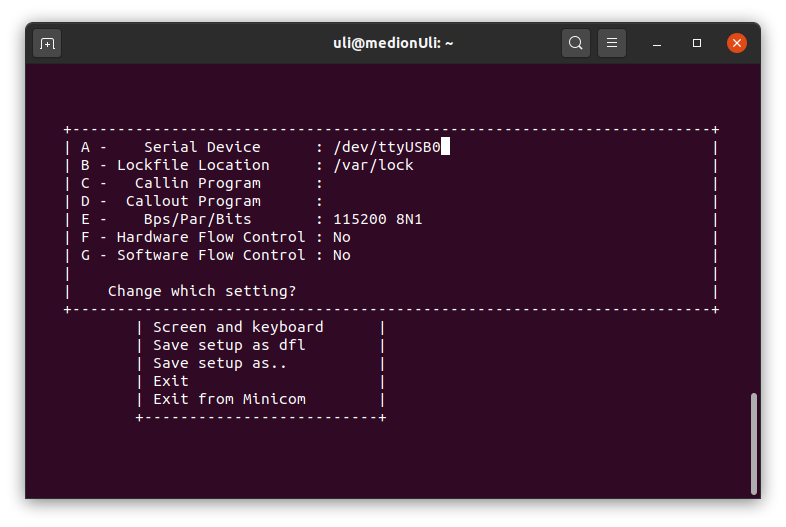
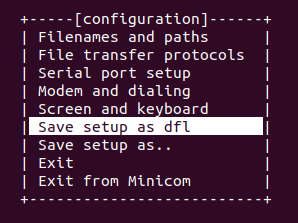
Then you can save these settings as default when starting minicom.
 Finally you can start minicom normally without any options and you will see that MicroPython says "hello" with its characteristic prompt: ">>>".
In the screen dump below I typed the command
help()and you see the first part of MicroPythons answer.
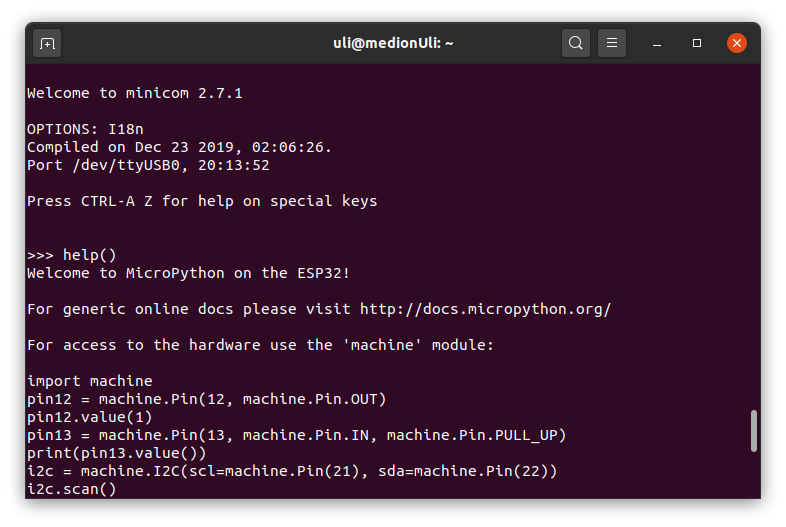 Now you can interact with MicroPython through its Read, Evaluate, Print Loop (REPL). Here a simple example:
 -- %USERSIG{UliRaich - 2020-04-25}%
Comments


| I | Attachment | Action | Size | Date | Who | Comment |
|---|---|---|---|---|---|---|
 sh |
esp32_erase.sh | manage | 185 bytes | 07 May 2020 - 10:01 | UnknownUser | |
| sh |
esp32_flash.sh | manage | 255 bytes | 07 May 2020 - 09:58 | UnknownUser | |
 bin |
firmware.bin | manage | 1 MB | 23 May 2020 - 10:36 | UnknownUser | |
 png |
microPythonSession.png | manage | 60 K | 25 Apr 2020 - 19:46 | UnknownUser | |
| png |
minicomConfig.png | manage | 42 K | 25 Apr 2020 - 18:28 | UnknownUser | |
| png |
minicomHelp.png | manage | 57 K | 25 Apr 2020 - 18:28 | UnknownUser | |
| png |
minicomSave.png | manage | 15 K | 25 Apr 2020 - 18:28 | UnknownUser |








Topic revision: r5 - 26 Jul 2021, UliRaich