
Development Tools
CSC321: Embedded Systems
First Semester 2018/2019
Slide 1: The Development Cycle
-
In software engineering, a software development cycle is the process of dividing development work into distinct phases to improve design, product development, and project management.
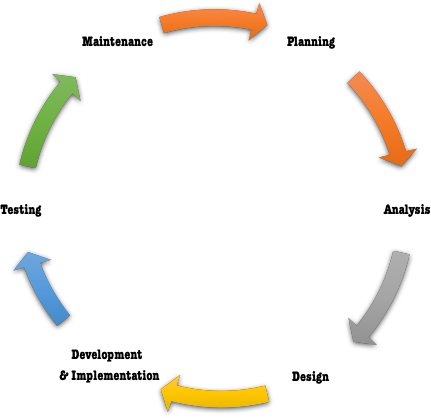
- The first and most important part in the development cycle is that you think!
- Simple programs such as “Hello World !!”, may be implemented without much planning and designing but already moderately
complex programs need a dedicated planning and design phase. - In real world problems, we need to break down the problem into small manageable parts that we can implement and test individually.
- It is important to have well designed interfaces between the individual software components to create the full program.
- It is also advisable to make a design on paper or use software design tools.
Slide 2: Editors
- An editor is similar to a word processor with only the features needed to write program text.
- All operating systems come with a basic text editor.
- Linux has plenty of editors.
- Editors are mainly used for writing something in plain text with no formatting so that another program can read it.
vi
- The most popular text editor for Linux is called 'vi'.
- It is the traditional and first full screen editor for Unix.
- There is a more recent version called 'vim' which means 'vi improved'.
- The problem with 'vi' or 'vim' is that a lot of people don't like it.
- You have to learn a lot of key combinations to do stuff that other text editors will do for you more easily.
- It is the editor for the die-hard Unix experts.
- On some Unix systems it is the only editor installed
Slide 3: emacs
- Another traditional Unix editor
- Emacs helps you be productive by providing an integrated environment for many different kinds of tasks:
- No matter what task you want to accomplish such as writing code, reading a manual, using a shell, or composing an email, emacs provides all the basic editing commands
- All the tools Emacs provides for opening, saving, searching, and processing text (and more) are available to you no matter what you're doing.
- The advantage of using emacs is that the key sequences used for editing are also understood by bash.
- It is easy to use and the favorite of many programmers.
Slide 4: emacs demo
Slide 5: 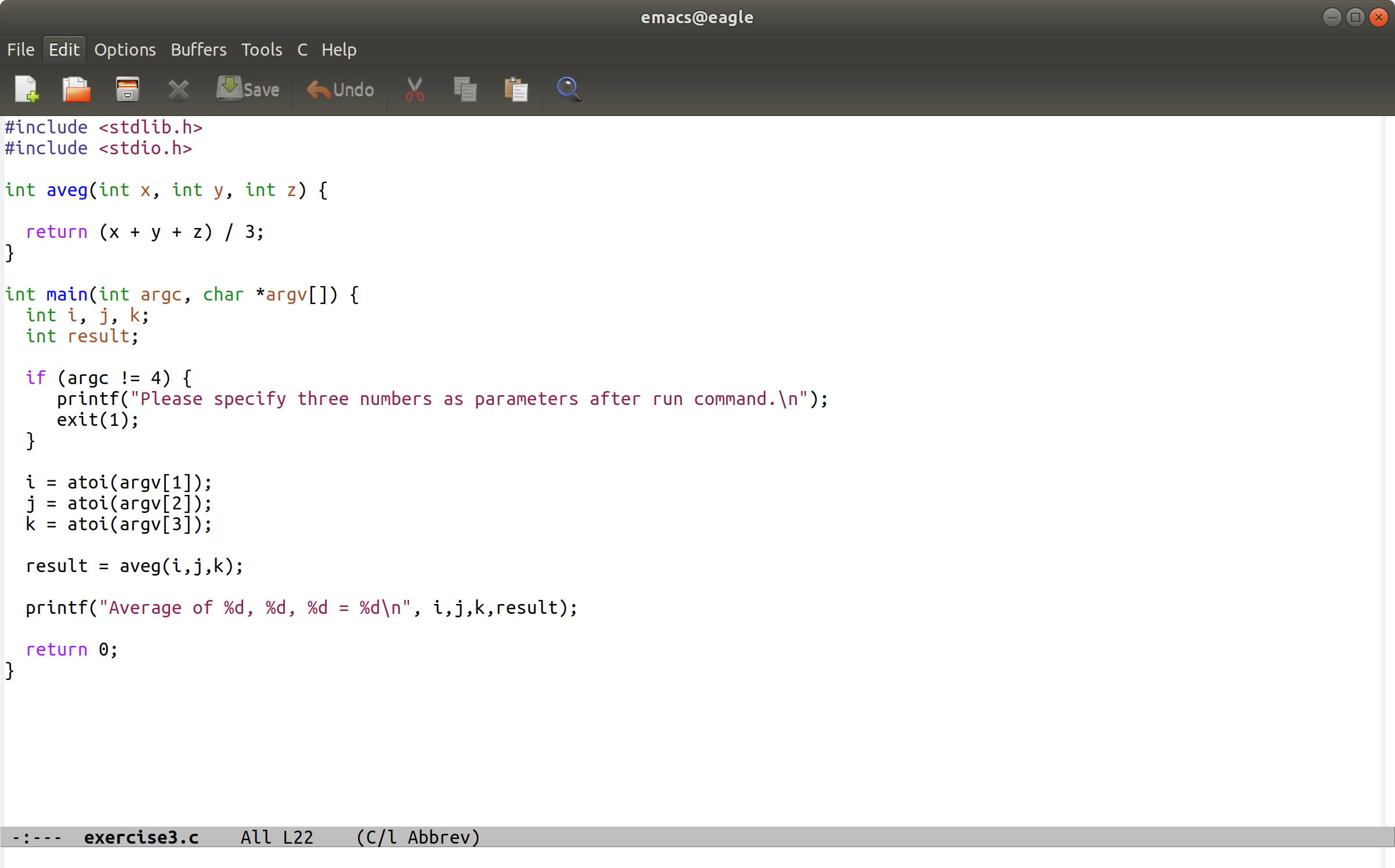
Slide 6: More Editors
- gedit: the editor that comes with the Gnome desktop
- joe
- ne: A minimal, modern replacement for vi.
- jed
- nano: A clone of Pico GPL licensed.
- ed
-
In addition to these we have editors being part of Integrated Development Environments (IDEs)
- eclipse: originally developed for Java but has “perspectives” for other languages like C, C++
- qtcreator: an IDE tailored to development of window based Qt programs. Mainly C++
- netbeans: tailored to Java but can also do C/C++
Slide 7: Linking Files
- Linking refers to the creation of a single executable file from multiple object files.
- It is easier to implement things that way by keeping the functions separate, the complexity of the program is reduced.
- It allows the creation of large programs without having to redo the compilation step every time a file is changed.
- It simple to implement libraries of pre-compiled code: just create object files and link them just like any other object file.
- We have seen that functions can be implemented in dedicated files.
- In our calculator, each operation can be implemented in a separate function on a separate file. We then have to compile 5 C programs to object files and finally link these into the final executable.
- The C library is automatically linked as well but we may also
- need to link additional libraries (e.g. libm.so the math library).
| gcc -c file1.c | creating object files with gcc |
| gcc -o output file1.o file2.o | Linking object files with gcc |
| gcc -o output file1.c file2.c | Linking files with gcc |
Slide 8: gcc
- A compiler is a computer program used to convert code into a file that the computer can execute
- gcc (GNU Compiler Collection) is the de facto industry standard C compiler
- It exists for many different machines
- Intel processors
- ARM MIPS
- And it comes as native or as cross compiler
- gcc is open source and easy to implement.
Slide 9: gcc components
gcc has several components:- The preprocessor :- this treats the #define and #include statements to build a complete C source file for the compiler
- #define :This is mainly used to define constants. #define pin1 18
- #include : This is used to access function definitions defined outside of a source code file. #include <stdio.h>
- The C compiler proper:- The compiler compiles the program
- The assembler : It outputs an assembler code file for each non-assembler input file specified. gcc -S helloworld.c
- The Linker :- The job of the linker is to link together a bunch of object files (.o files) into a binary executable
Slide 10: gcc options
gcc has plenty of options which may also depend on the compiler version. gcc for ARM has different options from gcc for Intel. Here are just a few of them:- -Wall :- enables all compiler's warning messages.
- -g :- generates debug information to be used by GDB debugger.
- -E :- only run the preprocessor
- -S :- create assembly code and stop
- -c :- compiles source files into object files without linking
Slide 11: gcc input and output
g cc input can be any of the following:- C source code: myCode.c
- Assembly code: myCode.s
- Object code: myCode.o
- Libraries: libmylibrary.a or libmylibrary.so If you do not specify the name of the output file (-o option) the executable will be called a.out
Slide 12: Running the program
To run the program we have to run ./nameOfBinary Why do you have ./ before the program name and what does it mean? Is there a means to run the program without the ./ ? Beginner programmers often think that the job is done once the program is compiled and all the syntax errors fixed. The truth is that then the work has just started. Often there are programming errors (bugs) in the logic and the program misbehaves. In order to avoid the./ prefix each time a program is to be executed, add export PATH=.:$PATH to .profile file.Slide 13: Printing debug information
Very often programmers put print statements purely for the sake of debugging. One easy way out of the dilemma is given by the C preprocessor:#define DEBUG 1 #ifdef DEBUG printf(“printing some variable contents %d\n”,variable); #endif Commenting out the #define statement will get rid of all debugging prints.
Slide 14: The debugger :- gdb
Sometimes printing debug information is not enough and we have to use a debugger. A debugger is a program that runs other programs, allowing the user to exercise control over these programs, and to examine variables when problems arise. gdb the GNU debugger is still the standard tool Compile your program with the -g option to retain the symbol table Then run the program within the debugger gdb yourProgramSlide 15: Using gdb
- break: set a breakpoint to stop running when arriving at this point
- run: start the program
- continue: continue running after a breakpoint
- next: execute the program line next line
- step: step into the function if the next line is a function call
- list: print the source code at the current position in the program
- bt: backtrace, show the program stack
- print: print a variable For more information read the manual.
This is rather short (you find a bit more in the 800 pages gdb manual)
Slide 16: make
make is a tool simplifying the building of programs which runs on Unix, Linux, and their flavors. It aids in simplifying building program executables that may need various modules. It is a tool with which we can describe how to build the program and execute all necessary steps automatically. make will only re-build object or executables that depends on files that have been modified since the last re-built. make reads in rules (specified as a list of target entries) from a user created Makefile. After editing program file(s):| make | rebuild the executable by typing make |
| make target_label | specify a target in the makefile to be executed. eg. make clean: to execute the rm commands in Makefile |
Slide 17: Makefile
Traditionally the description is called Makefile (with Capital M) even though it can be created with any name. A Makefile contains:- Macros (similar to Variables)
- Dependencies
- targets
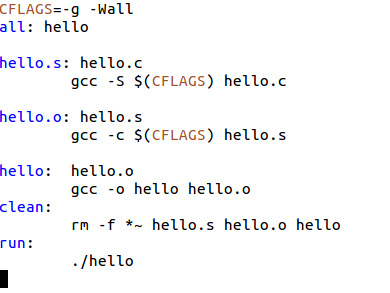
Slide 18: Makefile example
Slide 19: Targets and dependencies
A simple makefile consists of "rules" with the following shape: target ... : dependencies ... (tab) command ... A target is usually the name of a file that is generated by a program; examples of targets are executable or object files. It can also be the name of an action to done, such as `clean' . A dependency is a file that is used as input to create the target. A target often depends on several files. hello: hello.c hello.h In this case hello is the target and it depends on hello.c and hello.h A command is an action that make carries out(create the target). A rule may have more than one command, each on its own line. Tab $(CC) $(CFLAGS) -o hello hello.c This will compile and link output the hello executable A rule, explains how and when to remake certain files which are the targets of the particular rule.Slide 20: A Simple Makefile
Make has predefined rules and it knows how to produce a .o file from a .c file We can therefore restrict out Makefile to this: CFLAGS= -g -Wall all: hello clean: rm -f *~ hello.s hello.o hello run: ./helloSlide 21: Makefile with several object files to be linked
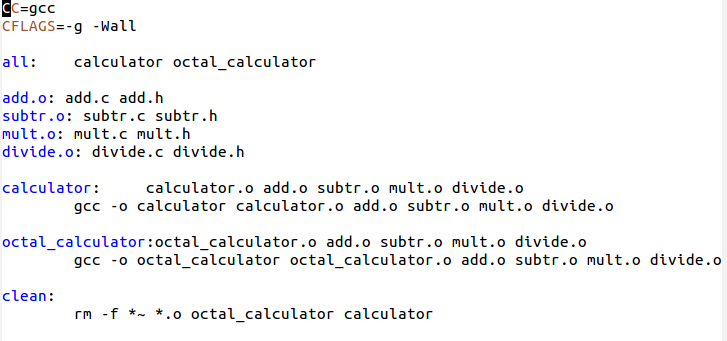
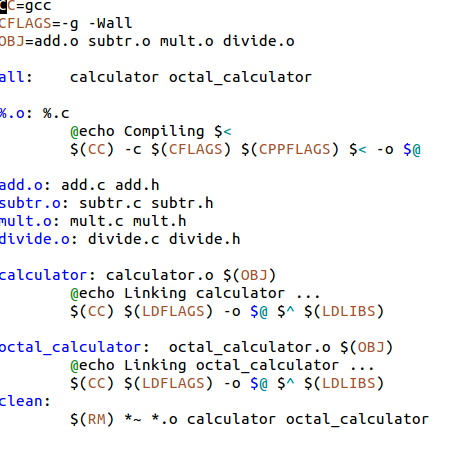
Slide 22: Makefile improved
Slide 23: Special macros
- CC is the C compiler, it defaults to cc
- CFLAGS are the flags to be passed to the C compiler
- LDFLAGS are the flags to be passed to the linker
- LDLIBS are the libraries to be linked into the executable
- RM translates into rm -f
- $< is the file that caused the action
- $* is the prefix shared by target and dependent file
- $@ is the file to be made
- $? are the dependent files that have changed
- $^ are all dependent files
Comments


| I | Attachment | Action | Size | Date | Who | Comment |
|---|---|---|---|---|---|---|
 png |
cycle.png | manage | 49 K | 02 Oct 2018 - 11:19 | IsaacArmahMensah | |
| png |
emacs1.png | manage | 191 K | 04 Oct 2018 - 09:38 | IsaacArmahMensah |




Topic revision: r5 - 04 Oct 2018, IsaacArmahMensah