
Slide 1: The Linux Operating System
Lecture 2
CSC 321: Embedded Sysytem
First Semester 2018/2019
Slide 2: Starting the Linux System
This is how the screen for ubuntu 18.04 may look like after some programs have been started.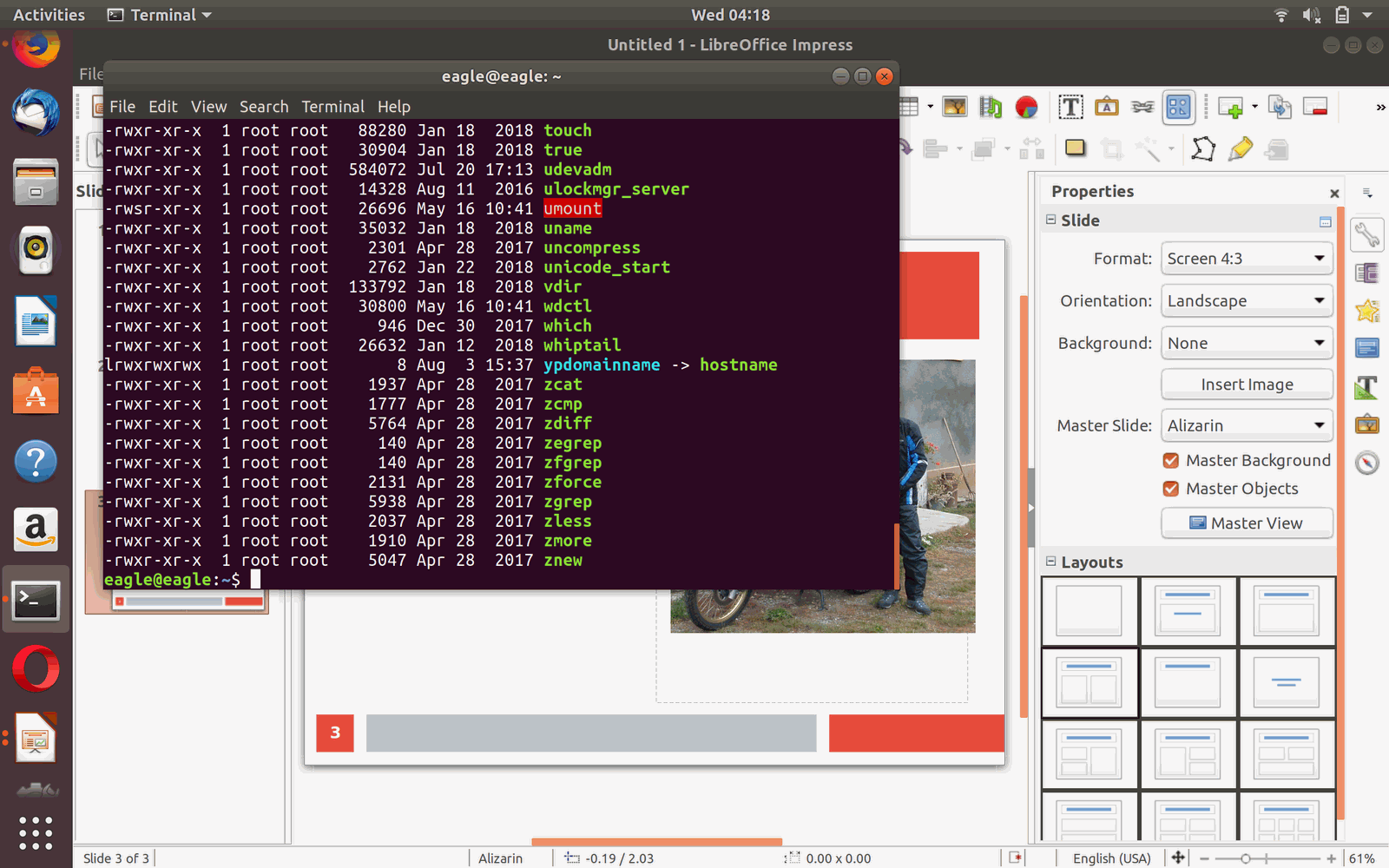
Slide 3: Linux Distributions
- A Linux distribution is an operating system made from a software collection, which is based upon the Linux kernel and, often, a package management system.
- It comes in many flavors (distributions) which may be different in how they are configured, their desktop, their software repository,
- Their target user community includes
- beginners, gurus, programmers, desktop, server …
- Here are some distributions:
- Ubuntu (which we use), Mint, Debian, RedHat, Fedora, Kali...
Slide 4: Linux versus Windows
- Linux can be downloaded and installed for free
- The sources of the OS can be accessed freely
- Linux has a window system based on X11 and has most facilities Windows offers
- For certain commercial hardware there are no Linux drivers (caution!)
- Writing your own Linux driver is possible but often the manufacturers do not open the hardware specs (register meaning, initialization procedure…) which makes this a very tedious job.
- Programmers mostly use the command line interface something that is hardly ever used in Windows.
- The file system layout on disk is different (ext4 vs ntfs) but there exist drivers on both systems for reading and writing the others files systems
Slide 5: Linux Command Line
When you start up a terminal window, you start a command shell with it.Shell
- A system program that allows a user to execute:
- shell functions (internal commands)
- other programs (external commands)
- shell scripts
- Linux/UNIX has a bunch of them, the most common are
- tcsh, an expanded version of csh (Bill Joy, Berkley, Sun)
- bash, one of the most popular and rich in functionality shells, an expansion of sh (AT&T Bell Labs)
- ksh, Korn Shell
- zhs
- ...
Slide 6: Bash
- When you type a command, bash will check if it is a command and implemented in bash, in which case it is executed immediately.
- otherwise a new process is created, the command loaded and executed
- After termination of the command the process is removed again.
- Either bash waits for termination of the process or it is run in parallel (“&” after the command)
- Where are the commands and how many are there?
Slide 7: Command Format
- Format: command name and 0 or more arguments:
- commandname [arg1] ... [argN]
- Arguments can be
- options (switches to the command to indicate a mode of operation) ;
- usually prefixed with a hyphen (-) or two (--) in GNU style
- non-options, or operands, basically the data to work with (actual data, or a file name)
- The number of commands is unlimited since you can write your own commands and include them into the system.
Slide 8: Most used Linux Commands
Here are a few very frequently used commands| Command | Action |
|---|---|
| ls | List directory content |
| cat, less, more | Print content of a text file |
| mkdir | Create a directory |
| cd | Change working directory |
| pwd | Print current working directory |
| echo | Print variable |
| vi, nano, emacs, gedit ... | Edit a text file |
| rm, rmdir | Remove a file / directory |
| grep | Search for a string in files |
The environment variable PATH tells the system where to look for commands.
Slide 9: Commands
Grouping Command
- Commands are grouped with Semicolon: “;”
- Often grouping acts as if it were a single command, so an output of different commands can be redirected to a file:
- (date; cal; ls) > out.txt
History
Display a history of recently used commands| Command | Action |
|---|---|
| history | all commands in history |
| history 10 | last 10 |
| history -r 10 | reverse order |
| !! | repeat last command |
| !n | repeat command n in history |
| !-1 | repeat last command = !! |
| !-2 | repeat second last command |
| !ca | repeat last command that begins with ‘ca’ |
Slide 10: Manual pages
|
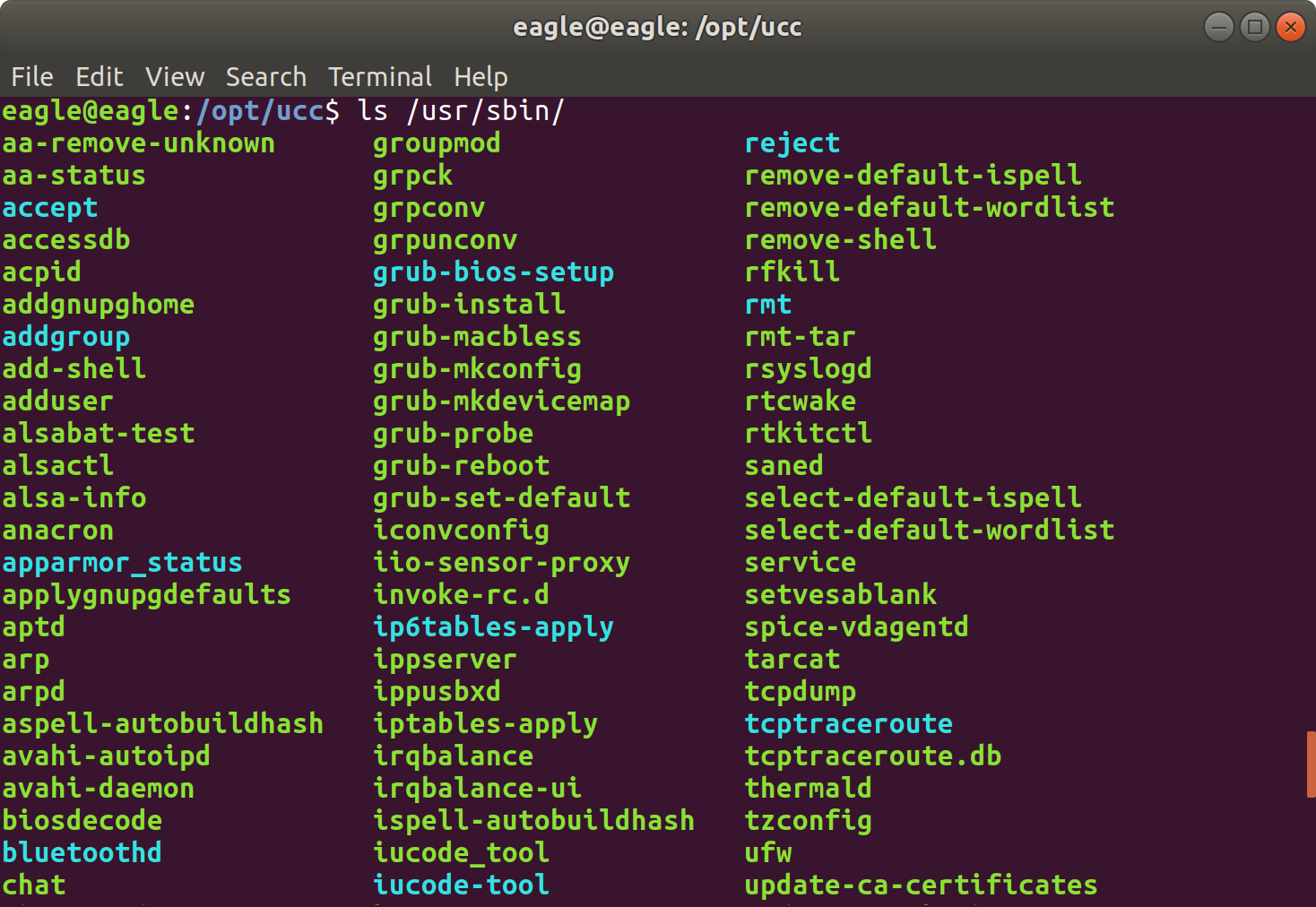
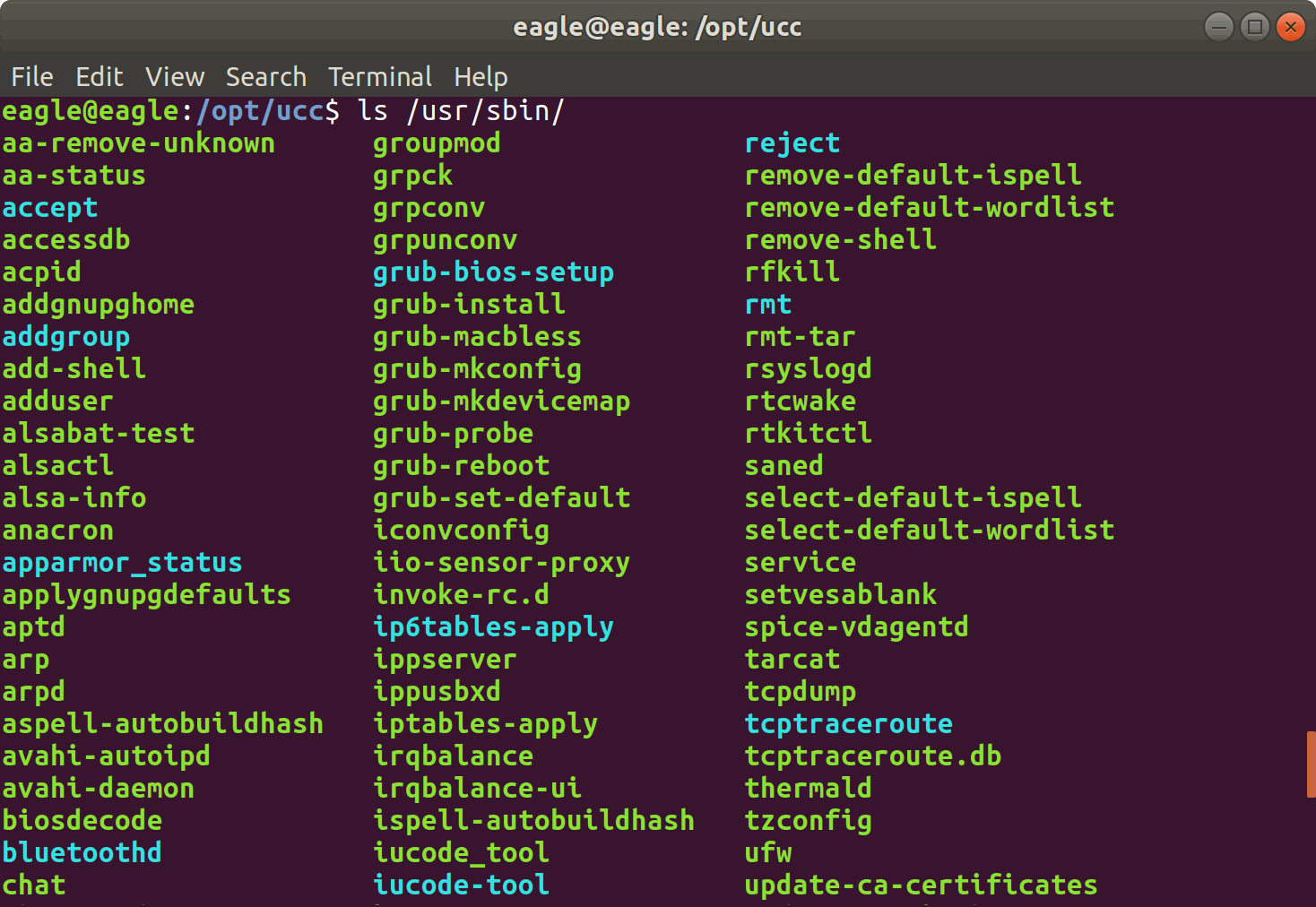
This is a small sample of /usr/sbin
|
Slide 11: Commands
apropos
Search man pages for a substring.- apropos word is equivalent to : man -k word
script
Writes a log (a typescript) of whatever happened in the terminal to a file.- all log is saved into a file named typescript
- script [file]
- script
- all log is saved into a file named file
- script file
- To exit logging, type:
- exit
find
Looks up a file in a directory tree.- find . -name name
- find . \(-name ‘w*’ -or -name ‘W*’ \)
File permissions and user groups Typing ls -l (l means long listing format) in a directories,
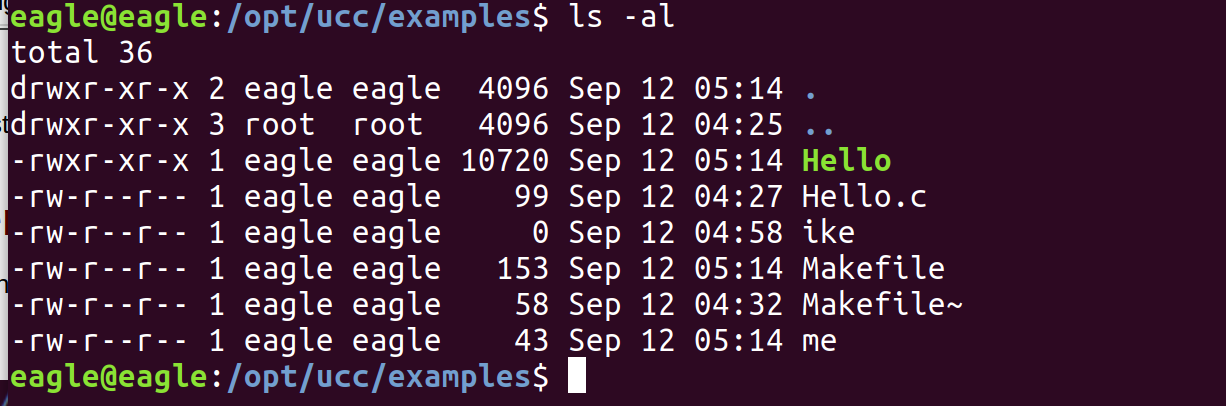 The left rwx means that the file owner can
- r ---> Read
- w ---> Write
- x ---> eXecute
Slide 12: Changing file permissions
The chmod command allows the file owner to modify file permissions. This can be done for- u: user who owns the file
- g: users in the same group
- a: any user
- x (execute) = 1
- w (write) = 2
- r (read) = 4
- Owner - 7
- Group - 2
- Other - 4
Slide 13: Changing the eXecute
Changing the eXecute flag in a shell script to make it executable is often done: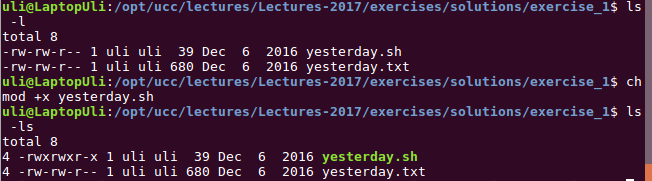
Slide 14: The super user
As we have seen the owner of a file / directory can do with it whatever he wants including to refuse access to anybody but himself.You can modify or destroy your file but you cannot modify system files or files of other another user if he does not explicitly allow it.
There is one user who has the power to do anything: root: the super user. Sometimes you may need this power to adapt the system to your needs: sudo command executes a command with super user privileges. Be careful when doing this, you have the power to destroy your system!
Slide 15: Adding Software packages
The apt command is a package management to allowing you to
- add new software packages
- remove them
- upgrade them
- find out which packages are installed
Slide 16: Find commands on the system
| To find any command click this button and type a command name in the search box |
 |
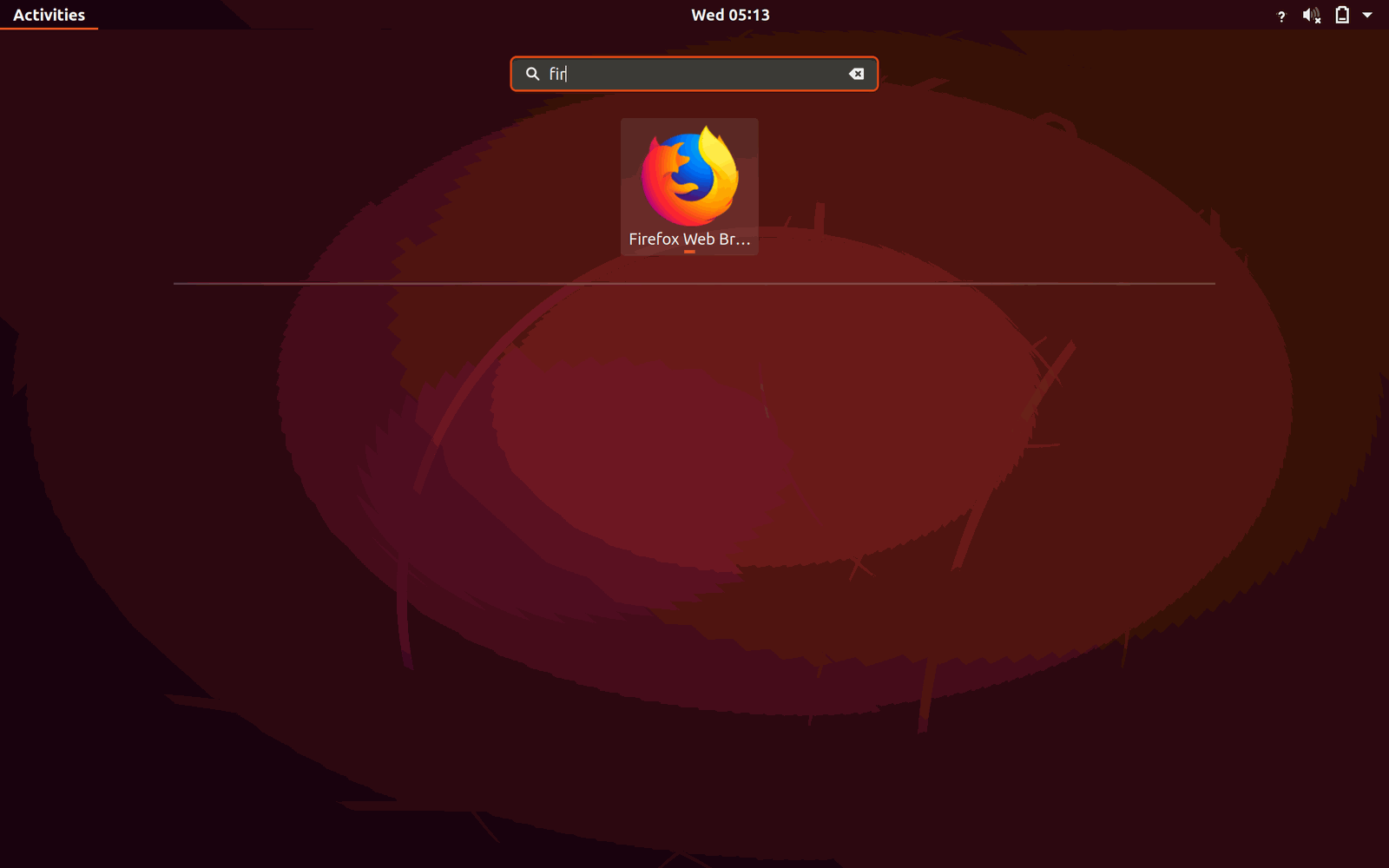 Here we try to see which software is available on Ubuntu by clicking on activity
Slide 17: stdin, stdout, stderr
Every program has 3 input/ouput channels associate with it:- stdin: the standard input channel
- stdout: the standard output channel
- stderr: the error channels
Slide 18: pipes
A pipe is a method of interprocess communication (IPC) In shells a '|' symbol used It means that the stdout of one command (on one side of a pipe) serves as an stdin for the command on another end. A set of "piped" commands is often called a pipeline Unix (and Linux) uses many small programs that can however be connected to produce more complex commands to easily solve more complex tasks Let’s say, you want to know how many instances of bash are running on the system (with each terminal you get an associated shell) In this case you can give the command ps ax, which will however print all processes currently running. If you pipe this output into grep bash(showing every line containing the string “bash”) then you have constructed the command you are looking for.
Slide 19: The home directory
Every user has his own home directory into which his personal files are stored. This also concerns configuration files Most configuration files are “hidden files” whose file names start with “.” To see these type ls -a ~ Meaning: show all files in my own home directory. cd (without parameters) takes you to your home directory The current working directory is “.” “..” is the directory one level up from the current working directory (goto the parent directory of the current directory)Slide 20: Change Settings
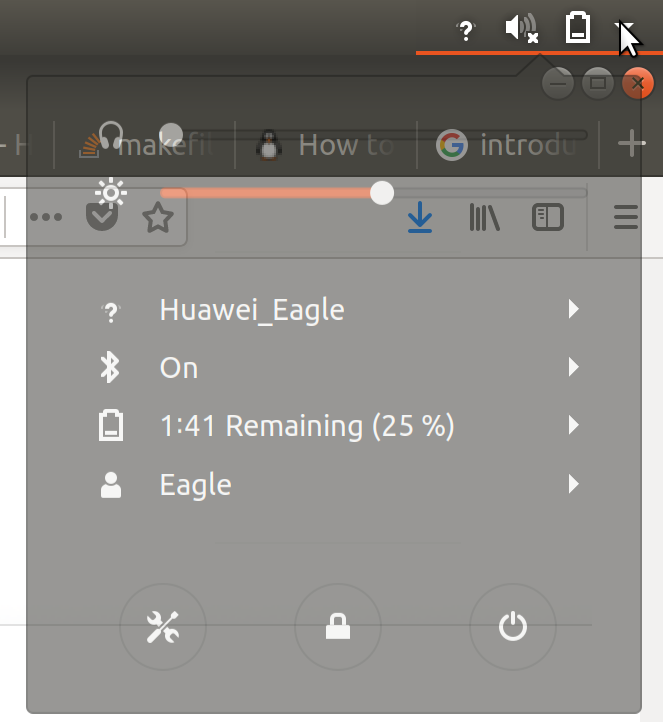
Slide 21: Settings
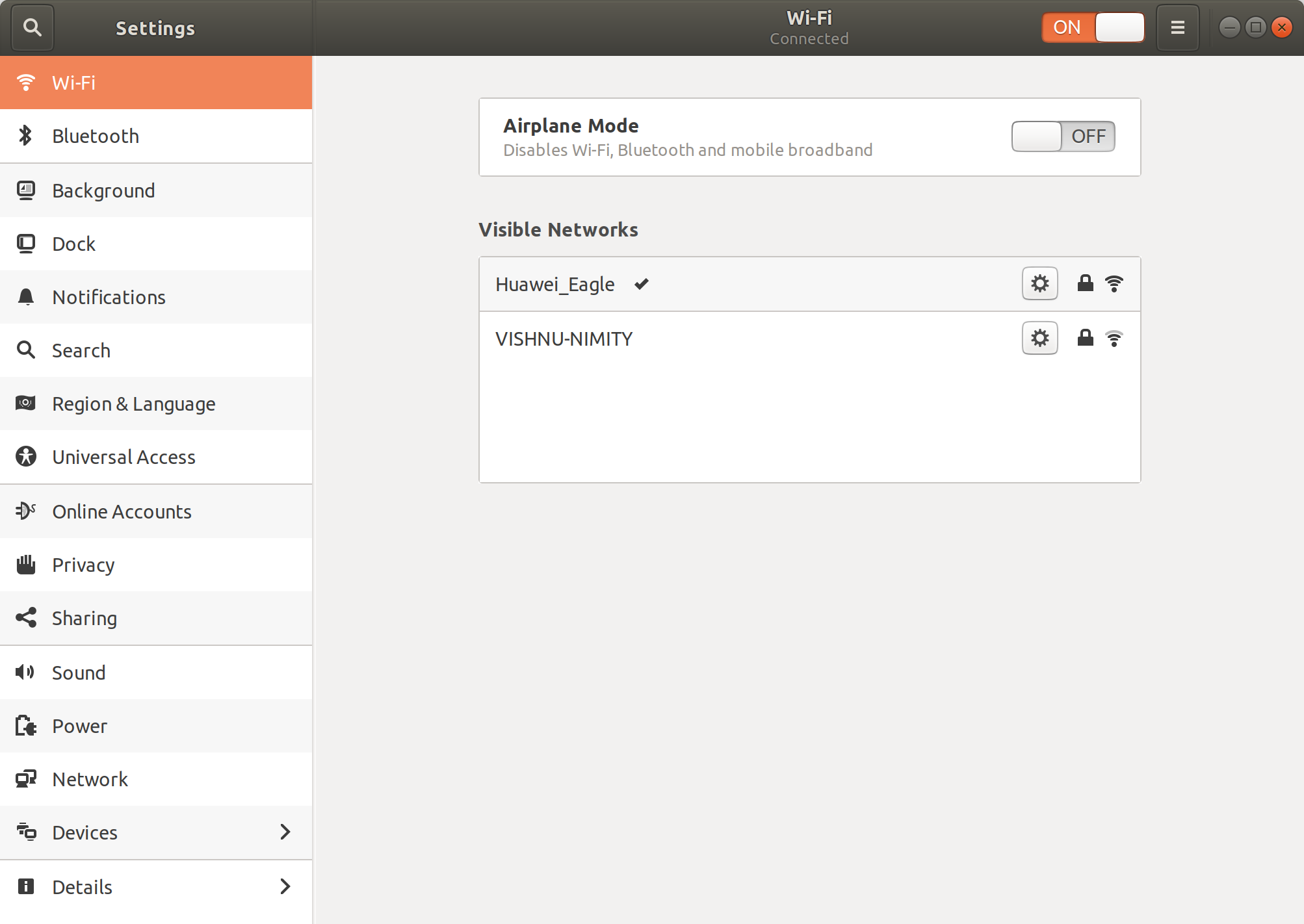
Slide 22: bash scripts
You can collect a sequence of commands in a script file (e.g. myscript.sh) The command sh myscript.sh sequentially executes all commands in this file.Actually bash is a command language with assignments, conditional and loop statements just like any conventional programming language. When making your script file executable by changing the permission bits, you can run it like any other program (how?). Have a look at your ~/.profile, a shell script which is executed when you create a new shell (e.g. when opening a new command window).
Slide 23: Other script files
bash is a command interpreter but it is not the only one There are other command shells like csh, tcsh … And there are script base programming languages like python, perl … Often the first comment in the script file tells the system which interpreter to use: #!/bin/sh #!/bin/pythonComments
← PreviousIntroduction to Embedded SystemsOverviewLecture SlidesNext →Lecture 3 Introduction To C Programming


| I | Attachment | Action | Size | Date | Who | Comment |
|---|---|---|---|---|---|---|
 png |
Screenshot_from_2018-09-12_04-22-11.png | manage | 224 K | 12 Sep 2018 - 15:49 | IsaacArmahMensah | |
| png |
Screenshot_from_2018-09-12_05-11-38.png | manage | 10 K | 12 Sep 2018 - 16:20 | IsaacArmahMensah | activity |
| png |
bash.png | manage | 43 K | 12 Sep 2018 - 16:31 | IsaacArmahMensah | activity |
| png |
ls-al.png | manage | 108 K | 12 Sep 2018 - 16:10 | IsaacArmahMensah | |
| png |
manual.png | manage | 343 K | 12 Sep 2018 - 11:36 | IsaacArmahMensah | |
| png |
search.png | manage | 631 K | 12 Sep 2018 - 16:22 | IsaacArmahMensah | activity |
| png |
setting1.png | manage | 57 K | 12 Sep 2018 - 16:23 | IsaacArmahMensah | activity |
| png |
setting2.png | manage | 143 K | 12 Sep 2018 - 16:22 | IsaacArmahMensah | activity |
| png |
welcome.png | manage | 1 MB | 12 Sep 2018 - 11:02 | IsaacArmahMensah |

















Topic revision: r3 - 13 Sep 2018, IsaacArmahMensah